Before approving next week's guard assignments, check how planned paid hours compare with your weekly threshold. The Guard Sheets security guard overtime exposure calculator brings assignment hours and guard pay rates into an Excel review of forecast premium hours and costs.
Use it to evaluate a proposed schedule, correct incomplete inputs, and compare changes before approval. It is a planning forecast, not payroll: it does not record attendance, calculate client billing, or determine legal overtime obligations. All populated examples are fictional.
Where this workbook helps
- See each guard's planned paid hours against a configurable weekly threshold before approving assignments.
- Separate the added premium cost from the forecast paid labor cost when reviewing a schedule.
- Keep incomplete assignments from producing apparently complete premium and cost forecasts.
- Recheck exposure after changing assignment hours or guard allocations, using the same planning assumptions.
What is in the file
How to get started
1. Set the week and planning assumptions
On Settings, enter a Monday date in Week Start. Review Weekly Threshold (hours), Premium Multiplier, and Maximum Shift Duration (hours). Replace the fictional assumptions with values appropriate to your planning review. Complete Time Basis Review after checking the site-local time basis; do not leave the fictional selection in place for operational use.
2. Enter guards and base pay rates
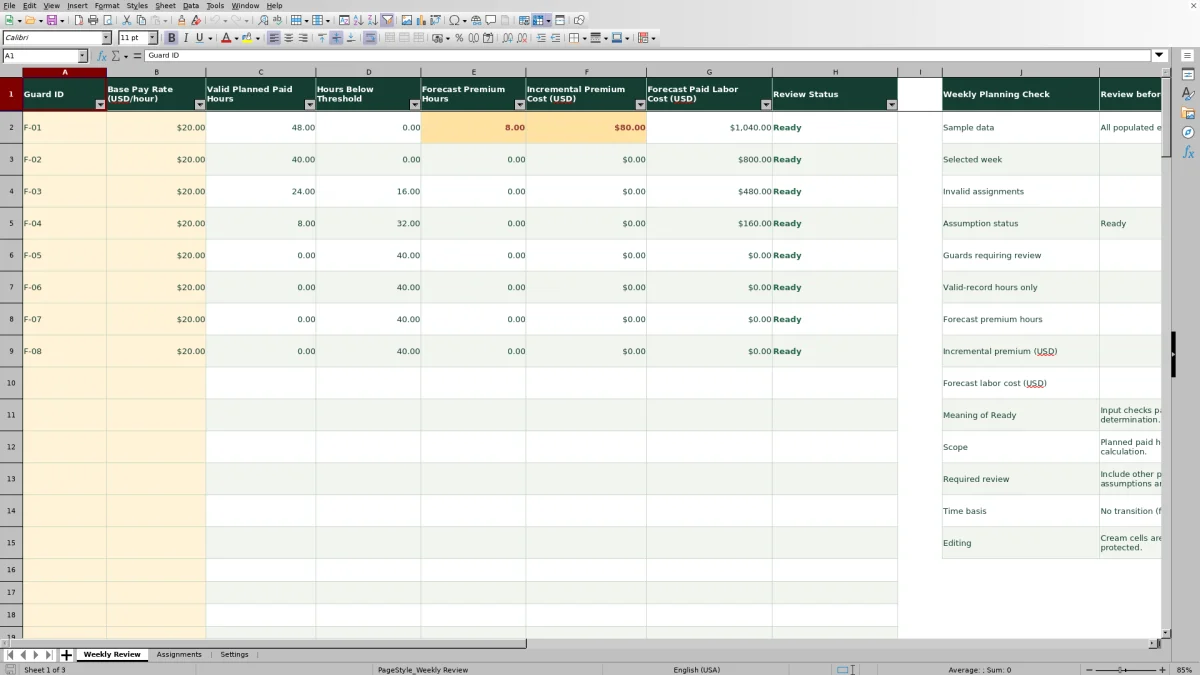
On Weekly Review, enter one unique Guard ID per guard and a positive Base Pay Rate (USD/hour). Use the pale cream input cells. Replace or clear the fictional inputs without deleting formulas.
3. Add the planned assignments
On Assignments, enter a unique Assignment ID, Guard ID, Post, Planned Start, Planned End, and Unpaid Break (minutes). One record represents one guard at one post for one continuous planned shift. Enter full start and end dates, and enter zero explicitly when no unpaid break is planned.
4. Clear exceptions and review the forecast
Check Input Status on Assignments, then Assumption Status and Invalid Assignment Count on Settings. Resolve every exception before interpreting the premium and cost results on Weekly Review. Ready means input checks passed, not that the schedule has been approved. Check that all relevant planned paid time is included before making your approval decision.
Choose the planning basis before comparing guards
Start with the assumptions you want the schedule review to test. Settings applies one Weekly Threshold (hours) and one Premium Multiplier to the workbook's review. Weekly Review supplies one base pay rate per guard. These inputs define the forecast; they are not a determination of which pay rules apply.
The selected week runs from Monday at midnight through the next Monday at midnight. Confirm that this period matches the planning question you need to answer. The prepared Week Start check requires a Monday, so this file is not configured for a different weekly boundary.
Include other planned paid time when assessing exposure. Assignment hours alone may understate a guard's planned workload if relevant paid time is missing. Reconcile the schedule with your other planning records rather than treating a low total as proof that no additional premium hours will arise.
Maximum Shift Duration (hours) is an input-review limit. Choose it deliberately, but do not interpret a shift passing that check as a staffing, legal, or safety determination.
Enter overnight shifts without losing hours
For overnight work, Planned End must include the following date when appropriate. Entering only clock times, or using the same date for an end time earlier than the start, does not describe the intended shift correctly. Use the workbook's MM/DD/YYYY date format with explicit times.
The duration calculation subtracts Planned Start from Planned End and converts the difference to hours. Planned Paid Hours then subtracts Unpaid Break (minutes) divided by 60. This means the break field requires minutes, not decimal hours. A blank break is incomplete; zero is a deliberate input when no unpaid break is planned.
Split shifts at the selected week boundary and allocate the break to the appropriate segment. Review each week's segment in its corresponding weekly file so hours do not fall outside the selected period or get counted twice.
The fictional examples assume one site-local time basis with no daylight-saving transition. For operational work, select No transition confirmed only after checking. If a clock change occurs, select Transition: review required and resolve the time basis manually before choosing Manual adjustment completed. The date subtraction does not itself establish the correct elapsed time across a clock change.
Fictional example: interpret premium hours and cost
The populated fictional records for guard F-01 show four assignments at Fictional Example A, each from 6:00 AM to 6:00 PM on 09/28/2026 through 10/01/2026. Each assignment has zero unpaid break minutes. Together, those records produce 48.00 planned paid hours.
Using the fictional base pay rate of $20.00 per hour, weekly threshold of 40.00 hours, and premium multiplier of 1.5, the formulas produce the following results once all workbook input checks are clear:
- Hours Below Threshold: 0.00 hours, because planned hours already exceed the threshold.
- Forecast Premium Hours: 8.00 hours, calculated as planned hours minus the threshold, with a minimum of zero.
- Incremental Premium Cost (USD): $80.00, calculated as 8.00 hours × $20.00 per hour × (1.5 − 1).
- Forecast Paid Labor Cost (USD): $1,040.00, consisting of $960.00 in base pay for all planned hours plus the $80.00 incremental premium.
Incremental premium is only the added cost, not the full pay associated with the premium hours. For this fictional plan, the next decision is whether to retain the assignments or revise them and recheck the forecast. Any reassignment still needs a separate check of post coverage and the proposed relief guard's suitability; the cost calculation does not make that decision.
Troubleshooting: blank forecasts and incomplete totals
A blank premium or cost result is not the same as zero exposure. Any assignment marked Incomplete or Check blocks every guard's premium and cost metrics. Invalid settings also block those results. Valid Planned Paid Hours can remain visible because it sums only Ready assignments, so it may be a partial total while exceptions exist.
- Missing break value: Complete Unpaid Break (minutes), including an explicit zero when appropriate. Do not leave the field empty to mean no break.
- Duplicate or unmatched IDs: Give each assignment a unique Assignment ID. Make sure its Guard ID matches exactly one entry on Weekly Review, where guard IDs must also be unique.
- Invalid date or duration: Use Excel date/time values rather than text. Confirm that the end is after the start, the record fits inside the selected week, the break does not exceed the shift, and the duration fits the configured review limit.
- Review required on a guard row: Check for a missing or duplicate Guard ID, a nonnumeric or nonpositive pay rate, assignment exceptions elsewhere, or an unresolved Assumption Status.
- Settings do not pass: Check that Week Start is a Monday date without a time component, the threshold and maximum duration are positive, the multiplier is at least 1, and Time Basis Review is resolved.
After correcting an issue, return to Weekly Review and check the statuses again. A zero in Forecast Premium Hours on a Ready row means that the included valid hours do not exceed the configured threshold. It does not confirm that every intended assignment was entered.
Use the forecast to revise a proposed roster
Read Hours Below Threshold as the difference between a guard's valid planned hours and the configured weekly threshold, floored at zero. It is a numerical planning margin, not a recommendation to assign another shift. A guard with no entered assignments can show zero planned hours and the full threshold remaining.
Before adding work, check the underlying assignments and the roster outside this calculator. The workbook does not establish availability, qualifications, or whether the proposed allocation covers every required post. It also does not assign relief automatically.
When a client changes post hours, save a dated copy of the proposed plan before editing. Update the affected assignment inputs, clear any new exceptions, and compare the revised premium and labor-cost results with that saved version. Treat this as a manual comparison; do not assume the file preserves an approval history or notifies guards of changes.
Use the revised forecast to inform your approval process, then communicate the approved schedule through your normal dispatch workflow.
Keep formulas intact and stay within prepared capacity
The workbook prepares 100 guard rows on Weekly Review and 100 assignment rows on Assignments. Assignment capacity is a count of individual shift records, not a count of guards multiplied by days. Check that the complete weekly plan fits before starting a large review.
Formula cells are not protected. Edit the pale cream inputs and clear only input values when removing a record. Deleting or overwriting a formula can remove a calculation even when the remaining worksheet looks normal. Keep an unchanged master copy so you can restore damaged formulas and recheck results.
Do not assume that typing below row 101 extends every calculation. The verified aggregation and validation ranges use rows 2–101. If the plan exceeds that capacity, use a reviewed extension or another workflow. Splitting one guard's hours across separate files without combining them can understate weekly premium exposure.
Compare with a manually built planning spreadsheet
A blank spreadsheet can support the same planning task if you build and check the necessary calculations. This workbook supplies a defined weekly model, but that model also sets boundaries on the review.
| Method | Hours and cost calculations | Input review | Scope and flexibility |
|---|---|---|---|
| Guard Sheets overtime exposure workbook | Prepared calculations convert dated shifts and unpaid breaks into planned paid hours, then apply the threshold, rate, and multiplier. | Assignment exceptions and invalid assumptions block premium and cost metrics; statuses identify records needing attention. | Monday-based weekly review with one shared threshold and multiplier, one rate per guard, and 100 prepared rows in each input table. |
| Manually built planning spreadsheet | You enter totals or build formulas for shift hours, breaks, premium hours, and costs. | You must design and test checks for missing inputs, duplicate IDs, dates, and incomplete totals. | You can design different periods, capacities, or rate structures, but must verify that the formulas match those choices. |
Choose this workbook when its weekly model fits your operation and you want prepared calculations with visible input checks. Use a separately validated spreadsheet or another suitable workflow when you need different week boundaries, multiple rate structures, or more capacity. Neither approach turns planned assignments into verified attendance or a legal pay determination.
Frequently asked questions
Can I use the forecast as payroll or a client invoice?
No. It uses planned paid hours and the assumptions you enter. It does not record actual attendance or calculate billable hours. Forecast Paid Labor Cost (USD) includes base pay plus the calculated incremental premium; do not treat it as a complete payroll, employer-cost, or billing calculation.
Can different guards have different thresholds or multipliers?
The prepared model uses the shared Weekly Threshold (hours) and Premium Multiplier on Settings for all guards. Each guard has a separate Base Pay Rate (USD/hour) on Weekly Review. Guard-specific thresholds, multiple rates for one guard, and separate daily premium rules are not part of the verified calculation.
Does Ready mean a supervisor approved the assignment?
No. Ready means the workbook's input checks passed. It does not record or establish supervisor approval, confirm legal requirements, or verify that the schedule is operationally suitable. Complete your normal approval process separately.
Will the workbook verify that a guard worked the shift?
No. Assignments contains planned start and end times, not verified attendance. Use your actual-time records to establish worked hours; an entered assignment is not proof that a guard attended a post.
What should I do with the populated sample records?
All populated guards, posts, assignments, rates, and planning assumptions are fictional. Keep a separate sample copy if useful, then replace or clear the input records before operational use. Preserve the formulas and review Settings, including Time Basis Review, rather than carrying the fictional assumptions into a live schedule.
Editorial coverage

Naomi WestbrookScheduling & contract records

Adrian MercerPatrol & operational records