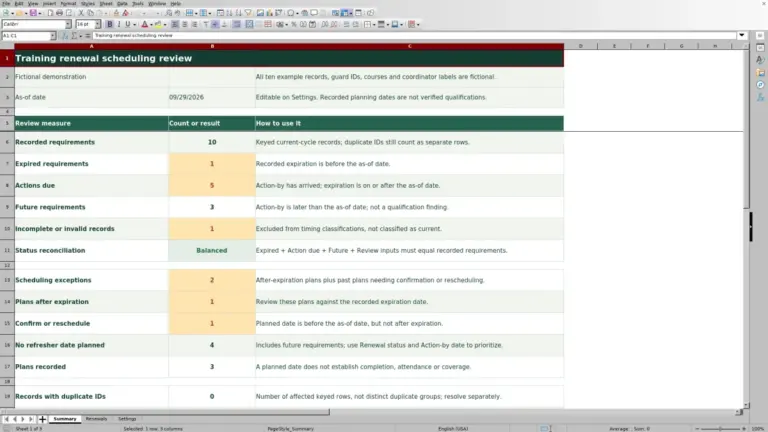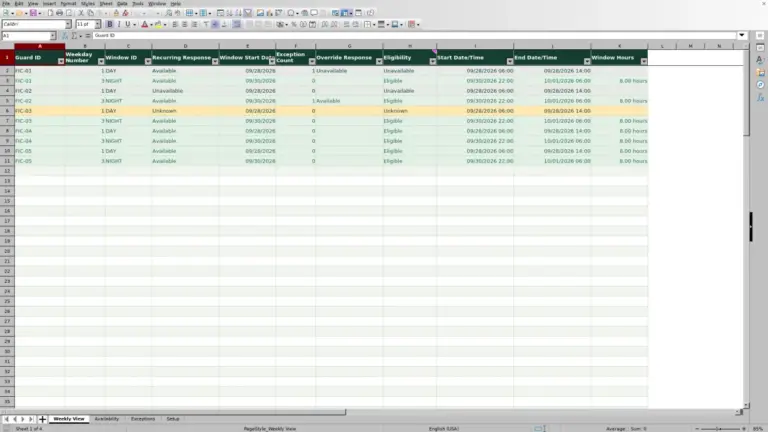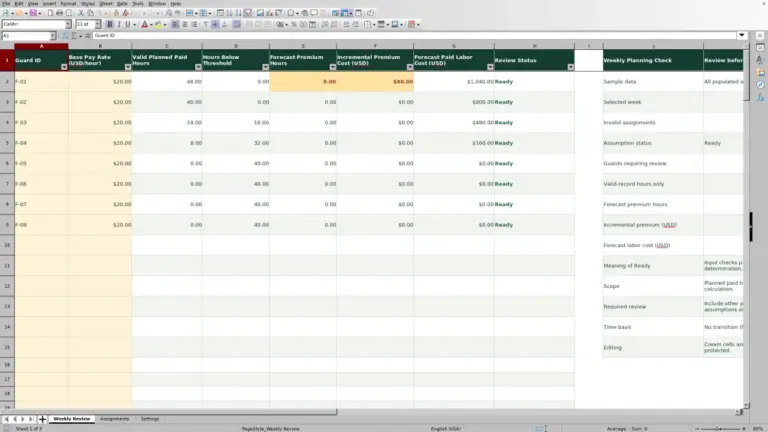
Decide which client sites need a supervisor visit, assign the visits, and check whether the planned hours fit the week. This Guard Sheets Excel workbook brings due dates, priorities, and visit-hour capacity into one planning file.
You update assignments and dates manually, then review a seven-day workload view for three supervisors. It is a visit workload planner, not a patrol route planner or guard shift roster. The included records are fictional examples.
Where this workbook helps
- Focus planning discussions on visits that are due, overdue, or marked High priority.
- Compare each supervisor’s counted planned hours with your daily visit-hour allowance.
- Spot incomplete records before treating low workload totals as available capacity.
- Move the weekly view forward without deleting the visits already entered.
What is in the file
How to get started
1. Set the planning week and capacity
On Settings, enter Week Start Date, replace the three fictional supervisor IDs with unique IDs, and set Daily Visit Capacity (hours) for each supervisor. Allow for travel and breaks when choosing these visit-hour allowances; the workbook does not calculate either.
2. Replace the fictional visit records
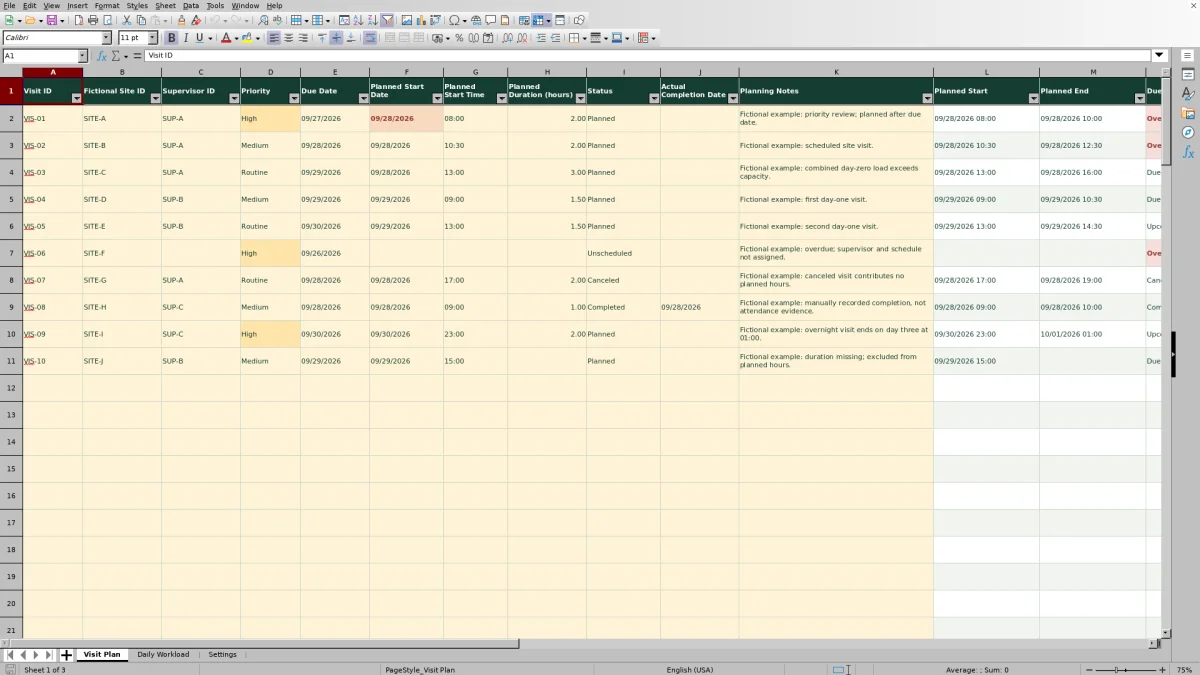
Clear or replace the ten seeded examples in the editable cells on Visit Plan. Enter Visit ID, the site identifier under Fictional Site ID, Priority, Due Date, and Status. Cream cells are editable; leave the calculated white and sage cells intact.
3. Assign and time each planned visit
Select Supervisor ID and enter Planned Start Date, Planned Start Time, and Planned Duration (hours). Use MM/DD/YYYY dates, times from 00:00 through 23:59, and positive decimal hours within the limit on Settings. Use one site-local time zone per workbook.
4. Check records before sharing the plan
Review Record Check on Visit Plan, then open Daily Workload to compare Planned Hours with Capacity (hours). Check the records-needing-review count beside the header, correct incomplete entries, and manually revise assignments or dates where needed. Share the agreed changes through your normal handover process.
Choose visits by due date, then test the plan
Start on Visit Plan by filtering Due Indicator and Priority. The priority choices are High, Medium, and Routine; use your company’s client priorities to decide what those labels mean. The workbook does not choose the visit order or assign a supervisor for you.
Due Date and Planned Start Date serve different purposes. Due Date records when the visit is needed. Planned Start Date places its counted hours into the workload view. Compare them directly before agreeing to a schedule: a visit can be planned after its due date even when the supervisor has enough capacity.
Due Indicator compares the due date with the current date in Excel, not with Week Start Date. Open visits show Overdue, Due today, or Upcoming as applicable. Completed and Canceled take precedence over those date labels, so review the actual dates separately when assessing whether a visit was late.
Fictional example: resolve an overloaded visit day
The seeded fictional plan assigns SUP-A three visits on 09/28/2026: SITE-A starts at 08:00 for 2 hours, SITE-B at 10:30 for 2 hours, and SITE-C at 13:00 for 3 hours. Their calculated end times are 10:00, 12:30, and 16:00.
Those durations total 7.00 planned hours. With SUP-A’s fictional daily capacity set to 6.00 hours, Daily Workload calculates -1.00 hour remaining and displays Over capacity. This means the counted visit time exceeds the entered allowance; it does not calculate overtime or actual worked hours.
Check the deadlines before moving a visit. SITE-A is due 09/27/2026, already before its planned date, while SITE-C is due 09/29/2026. A next step is to inspect SUP-A’s workload on SITE-C’s due date and consider moving that visit if the client requirements and available time permit. Make the change manually and review both days again, including travel and other commitments outside this calculation.
Read capacity without mistaking it for an open time slot
Remaining Capacity (hours) subtracts counted Planned Hours from Capacity (hours). A negative result triggers Over capacity; zero or a positive result produces Within capacity. The allowance is your planning assumption, not a staffing requirement or legal limit.
Within capacity does not mean conflict-free. The workbook does not detect overlapping visits, calculate travel, or add breaks. Compare Planned Start and Planned End for each supervisor and allow time between sites yourself before accepting another assignment.
The same capacity setting applies to that supervisor on every day of the displayed week. It is not a day-specific availability calendar. If availability changes on one day, account for that separately rather than assuming the daily alert reflects it.
For overnight work, enter the date the visit starts and use the agreed site-local time zone. Planned End can show the following date, but all planned hours remain assigned to the start date. Do not read the following day’s total as a complete picture of time occupied after midnight.
Common errors and solutions for missing visit hours
A low total may mean work is missing from the calculation. Review excluded records before adding visits. Daily Workload counts entries with positive Counted Planned Hours for the matching supervisor and start date; it is not a count of every visible Visit Plan row.
- Error: treating blank Counted Planned Hours as a zero-hour visit. Solution: check for a missing Visit ID, an unknown Supervisor ID, an invalid status, or missing calculated start and end values. Canceled and Unscheduled entries are intentionally excluded, so leave those statuses unchanged unless the visit’s planning status has actually changed.
- Error: entering a duration as text, zero, or a value above the allowed maximum. Solution: enter a numeric, positive Planned Duration (hours) no greater than Maximum Visit Duration (hours) on Settings. These invalid durations leave Planned End blank. Check the start date and time if Planned Start is also blank.
- Error: leaving core fields incomplete or entering a date as text. Solution: use Record Check to identify the issue, complete the required visit fields, and enter a real Excel date. Check Earliest Allowed Date and Latest Allowed Date if the date is outside the allowed range.
- Error: treating Missing capacity as no available hours. Solution: inspect the supervisor’s capacity on Settings. It must be numeric, nonnegative, and no greater than Maximum Daily Capacity (hours). Zero is allowed; a blank is not equivalent to zero.
- Error: expecting a visit outside the displayed week to appear in its totals. Solution: compare Planned Start Date with the seven dates on Daily Workload and change Week Start Date to inspect the relevant week. Also confirm that the supervisor ID matches a Settings entry.
The review count includes nonblank Record Check results other than OK across the prepared visit rows, not just the displayed week. Correct the underlying inputs rather than typing over formulas. Counted hours alone do not establish that a record is complete.
Update outcomes without erasing the planning context
Keep the four Status labels unchanged: Unscheduled, Planned, Completed, and Canceled. The formulas depend on those meanings. Completed visits retain their eligible planned hours, while Canceled and Unscheduled visits do not count toward workload.
Enter Actual Completion Date manually when recording a completed visit. Completion is a recorded outcome, not attendance proof. The workbook does not establish that a supervisor or guard attended the site, and it does not convert the original duration into actual worked hours.
Before revising a plan that has already been shared, save a dated copy through your normal file process. Use Planning Notes for brief scheduling context and communicate the revised assignment separately. Do not assume an edit preserves a change history or notifies the supervisor.
Know when the prepared planning range is enough
The supplied file supports 100 prepared visit records and a workload view covering exactly seven days with three supervisor slots per day. Changing Week Start Date changes the view without deleting visits, so you can inspect another week while keeping the existing plan.
Those limits are built into the supplied formulas and validation ranges. Adding a fourth supervisor below the Settings list or typing a visit below row 101 does not make it part of the existing calculations. Do not assume the summary expands with new rows.
If your operation needs a longer view, more supervisors, or more records, treat that as a workbook modification requiring formula and validation checks, or choose a workflow sized for that demand. Also review old assignments before replacing a supervisor ID: the workload calculation depends on matching IDs.
Compare this workbook with a paper visit planner
Both methods can support a manually agreed supervisor visit schedule. Choose based on whether your main need is a short written plan or repeated review of dates and visit-hour totals.
| Method | Due-date review | Workload review | Changes and limits |
|---|---|---|---|
| Guard Sheets Excel workbook | Filter priorities and calculated due indicators after entering visit details. | Calculates counted planned hours and remaining daily capacity for the prepared seven-day, three-supervisor view. | Edit assignments manually and recalculate. Travel, overlaps, and actual attendance are not calculated. |
| Paper visit planner | Write deadlines and priorities, then review them manually. | Add planned durations and compare them with your chosen allowances by hand. | Revise or reissue the written plan and communicate changes. Its layout can be adapted, but totals and date checks remain manual. |
Use the workbook when its prepared range fits your operation and you want repeatable workload arithmetic. A paper planner may be sufficient for a small, stable plan where manual checking is manageable. Neither method, by itself, confirms a site visit or resolves travel feasibility.
Frequently asked questions
Why might a file preview show no calculated results?
Open the workbook in Excel or LibreOffice and allow formulas to recalculate. A file preview may not calculate the formulas. If results are still blank afterward, check the relevant inputs and Record Check rather than assuming there are no visits.
Can I use the planned hours for payroll or client billing?
No. The file calculates planning workload, not paid hours, billable hours, rates, or payments. Use the appropriate approved time and billing records for those tasks.
Do I need to enter real site addresses or sensitive details?
The visit field is labeled Fictional Site ID, and the supplied site and supervisor records are fictional. Replace examples with identifiers suitable for your company’s planning process. Keep access codes, sensitive incident details, and unnecessary personal information out of Planning Notes.
Does the schedule assign guard shifts or plan patrol routes?
No. It plans supervisor site visits and summarizes their planned hours. Guard post coverage, relief assignments, patrol routing, and automatic dispatch are outside this workbook’s task.
Editorial coverage

Naomi WestbrookScheduling & contract records

Adrian MercerPatrol & operational records