Before building a roster, check which complete time windows each guard has reported as available. The Guard Sheets security guard availability matrix brings recurring responses and dated exceptions into a weekly Excel view for that decision.
Filter the results to identify windows available for consideration, then make assignment decisions separately. This workbook records availability, not assignments; it does not check qualifications, staffing demand or actual attendance. All prefilled example records are fictional.
Where this workbook helps
- Review recurring responses and date-specific changes together before choosing guards for shifts.
- Separate eligible windows from unavailable, unknown and review-needed results.
- See overnight windows with both start and end dates rather than relying on a time label alone.
- Identify duplicate or incomplete inputs before using the weekly view for roster planning.
What is in the file
How to get started
1. Set the planning week and window definitions
In Setup, enter a Monday in Week Starting (Monday), cell F2. The initial formula follows the current week; replace it with a fixed date when planning a specific week. Confirm Local Scheduling Time Zone in F5, add your Guard ID values and check each window's Start Time, End Time and End Date Offset.
2. Enter recurring responses
In Availability, use one row per Guard ID, Weekday Number and Window ID combination. Weekday Number runs from 1 for Monday through 7 for Sunday. Select Available, Unavailable or Unknown in Recurring Response. Each response covers the complete defined window.
3. Record date-specific changes
In Exceptions, enter the Guard ID, Window Start Date, Window ID and Override Response. Use the date the window begins, including for overnight windows. An exception replaces a corresponding recurring response; it does not create another output row.
4. Resolve issues, then review candidates
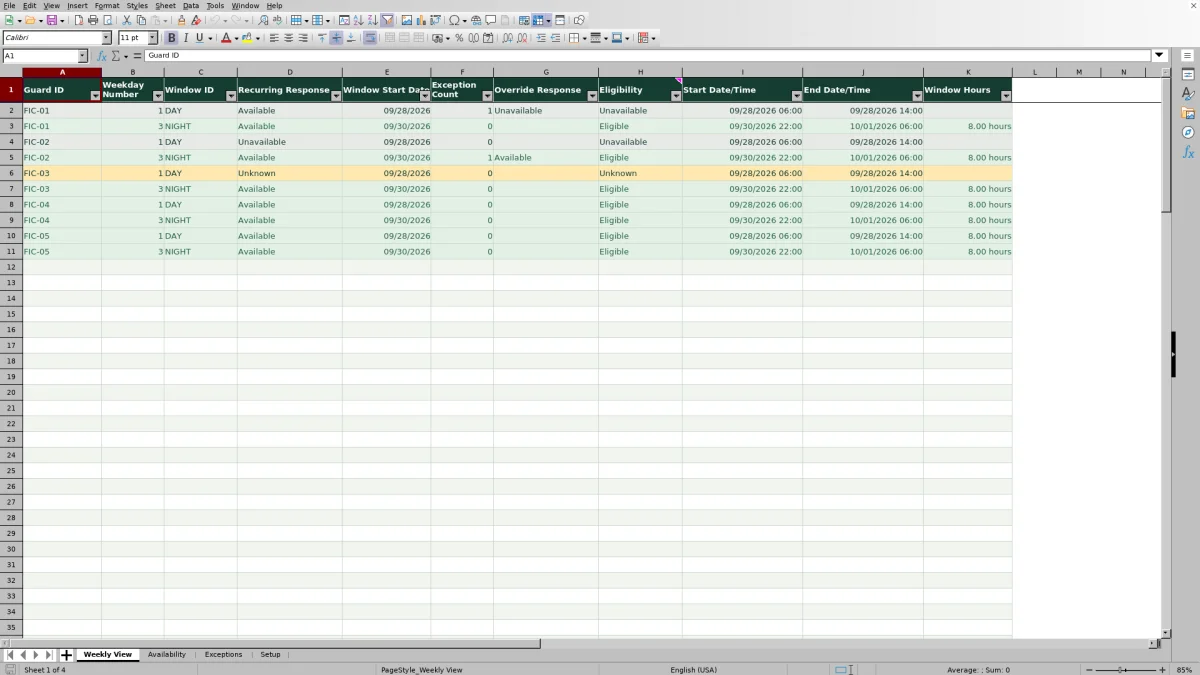
Check red input alerts and resolve every Review result in Weekly View before relying on the output. Filter Eligibility for Eligible, then inspect Start Date/Time, End Date/Time and Window Hours. Use these windows as input to your separate roster process, not as evidence that a post has coverage.
Read eligibility as a planning result
Use Eligibility to decide which records can move into roster consideration. Eligible means the recorded response supports availability for the complete defined window after the workbook's input checks and matching exception logic. It does not establish that the guard can fill a particular client post.
Review is not eligibility. Resolve the underlying record issue rather than treating it as an uncertain yes. Unknown is also not permission to assign; it calls for you to obtain a response through your normal process.
Window Hours appears only when Eligibility is Eligible. A blank hours cell is not a zero-hour shift or a measure of staffing shortage. Blank recurring rows produce no eligibility or hours, so a missing record must not be interpreted as reported unavailability.
Define windows that match the response you need
Ask guards about time windows you can use in planning. Each Setup definition needs a unique Window ID, two numeric times and an End Date Offset of 0 or 1. The duration must be greater than zero and no more than 24 hours. When adding a definition, prepare and paste all four cells together, then check for input alerts.
A response covers the whole window. If a guard can work only part of it, define a separate, smaller window and enter the appropriate recurring response. The workbook does not split intervals into available fragments for you.
Keep smaller definitions distinct and review their relationship manually. The file does not detect overlapping windows or optimize coverage. Adding the hours of overlapping windows can count the same guard's time more than once, so do not treat their sum as staffed coverage.
Fictional example: review an overnight window
To reproduce this example, set Week Starting (Monday) to 09/28/2026. The fictional FIC-02 record has Weekday Number 3, Window ID NIGHT and Recurring Response Available. Its matching fictional exception has Window Start Date 09/30/2026 and Override Response Available.
The supplied NIGHT definition starts at 22:00 and ends at 06:00 with End Date Offset 1. Weekly View therefore places the start at 09/30/2026 22:00 and the end at 10/01/2026 06:00. With the valid matching records, Eligibility is Eligible and Window Hours is 8.00 hours.
The hours calculation subtracts the start date/time from the end date/time and multiplies the Excel day difference by 24. That result represents nominal availability hours, not paid or billable hours. Your next decision is whether this complete window fits the proposed assignment, followed by any separate checks your roster process requires.
Times use the local scheduling time zone recorded in Setup, initially America/New_York. The label does not provide time-zone conversion, and daylight-saving transitions require manual review.
Apply exceptions without losing the recurring pattern
Use Exceptions when a guard's response changes for one dated window rather than editing the regular pattern for every week. Matching depends on Guard ID, Window Start Date and Window ID. For an overnight window, the exception belongs to the start date, not the next morning's end date.
One matching exception supplies the Override Response. More than one matching exception requires Review; do not expect the workbook to choose the latest entry. Correct the records so the intended response has one unambiguous match.
For availability that exists only on a particular date, first add a corresponding guard, weekday and window row in Availability, normally with Unknown as the recurring response. Then add the dated exception. An exception alone cannot create a Weekly View row, and an exception without a corresponding recurring weekday/window is flagged.
When Exception Count is zero, there is no matching exception key for that output row and Override Response remains blank. If you expected a change, inspect the exception's date, identifiers and completeness before relying on the recurring response.
Troubleshooting blank dates, duplicate records and Review
Start with the inputs rather than replacing a result in Weekly View. Pasting can bypass spreadsheet validation, so a value that entered successfully may still need correction.
- Missing window dates: check Selected Week Check in Setup. F2 must contain a valid Monday date without a time component. Also check that Weekday Number is a whole number from 1 through 7.
- Duplicate recurring records: inspect Duplicate Count in Availability. A unique entered combination should have a count of 1. Resolve extra rows for the same guard, weekday and window rather than changing their response labels to hide the duplication.
- Missing or invalid times: verify that the Window ID exists exactly once in Setup and that its full definition is valid. Use numeric Excel times, the correct offset and a positive duration within the allowed limit.
- Unexpected Review after a paste: check incomplete fields, response values, guard IDs and matching exceptions. Review red alerts on the input sheets as well as the output status.
Recheck Weekly View after correcting the source records. Do not type Eligible or an hours value over a formula to bypass an unresolved issue.
Keep the planning week clear at handover
Before handing the file to another dispatcher, confirm whether it should follow the current week or retain a particular planning week. Setup F2 initially uses a TODAY-based formula, so its selected Monday can roll forward when Excel recalculates. Use a fixed Monday date when the handover must refer to one specific week.
Save a dated copy before changing the week, recurring responses or window definitions if you need to retain the earlier planning state. Do not assume the workbook preserves a change history. Changing a shared window definition affects the dates and times calculated for rows that use that Window ID.
During handover, identify unresolved responses and record corrections through your normal communication process. The workbook is a planning file, not a guard notification or automatic dispatch service. Keep the finalized roster and assignment communications separate.
Compare with a manually maintained availability sheet
A blank spreadsheet can work when a dispatcher needs a flexible list and can reconcile every change manually. This workbook is suited to recurring, defined windows that need dated exceptions and a consistent weekly result.
| Method | Recurring responses and exceptions | Input review | Time-window output | Assignment decision |
|---|---|---|---|---|
| Guard Sheets availability workbook | Uses recurring rows and matching dated overrides. | Includes validation, duplicate counts, red input alerts and Review results. | Calculates dated windows and nominal hours for eligible results within its prepared ranges. | Requires a separate roster and assignment process. |
| Blank spreadsheet maintained manually | You design the fields and reconcile dated changes yourself. | You inspect records manually unless you build checks. | You enter or build the date and duration calculations needed. | Requires your own roster and assignment process. |
Choose this workbook when its complete-window model and prepared capacity fit your planning task. Choose a custom manual sheet when you need a different structure and can maintain the checks yourself. Neither approach turns reported availability into confirmed post coverage without a separate assignment decision.
Frequently asked questions
How many guards and availability records can I enter?
The prepared ranges provide space for 100 guard IDs and 10 window definitions in Setup, 100 recurring records in Availability and 100 exception records in Exceptions. Weekly View has formulas for 100 recurring rows. These are record limits, not 100 complete weekly schedules: one guard can use several recurring rows.
Do not assume entries below the prepared ranges will be included. Expanding capacity requires checking formulas, validation, formatting and referenced ranges together.
Can I use availability hours for payroll or client billing?
No. Window Hours represents nominal hours in an eligible availability window. It is neither paid time nor billable time, and the workbook provides no pay, overtime or break assumptions. Use the appropriate approved time and billing records for those tasks.
Are the formula cells protected from accidental edits?
No. Formula cells are marked locked, but worksheet protection is not enabled. Cream cells identify editable inputs. Keep a clean copy and avoid pasting over calculated columns, especially Weekly View, Duplicate Count and Match Key.
Can I sort Weekly View to organize the candidate list?
Filtering Eligibility is the workbook's stated workflow for finding complete available windows. Use the existing filter to narrow the displayed records. Keep the source records and formula columns intact rather than rearranging individual cells to group guards.
Should I leave the fictional records in my working copy?
Use them to understand the workflow, then replace or clear their input values before operational use. Check Setup, Availability and Exceptions so fictional guard IDs or dated overrides do not remain mixed with your records. Preserve formula cells when clearing examples.
Editorial coverage

Naomi WestbrookScheduling & contract records

Adrian MercerPatrol & operational records