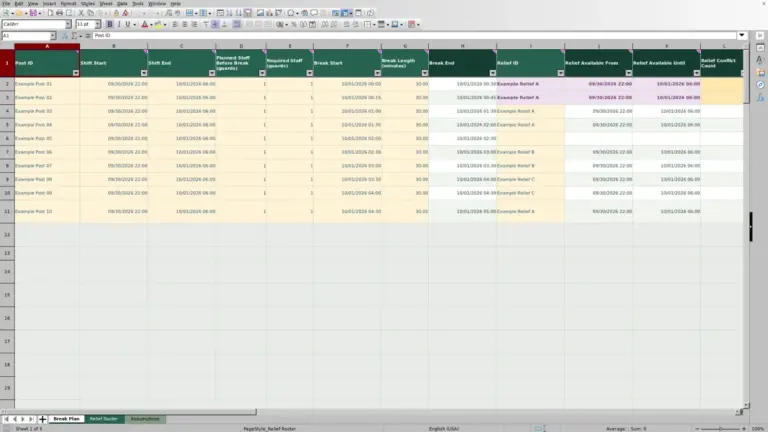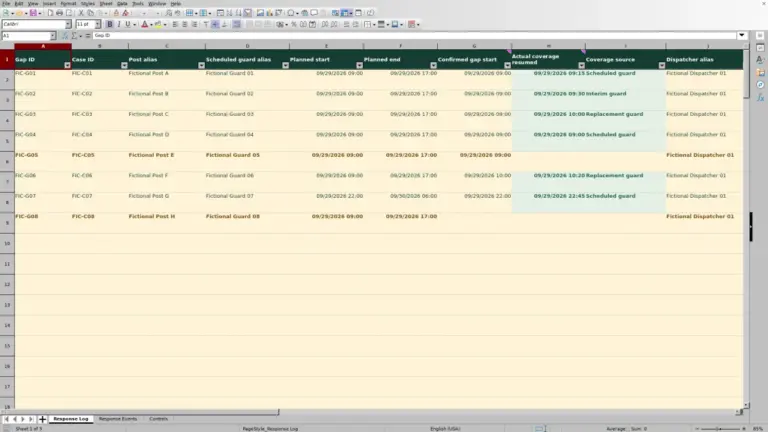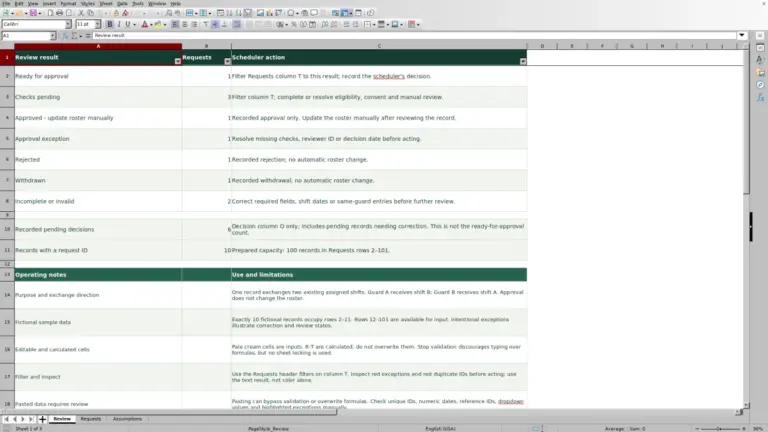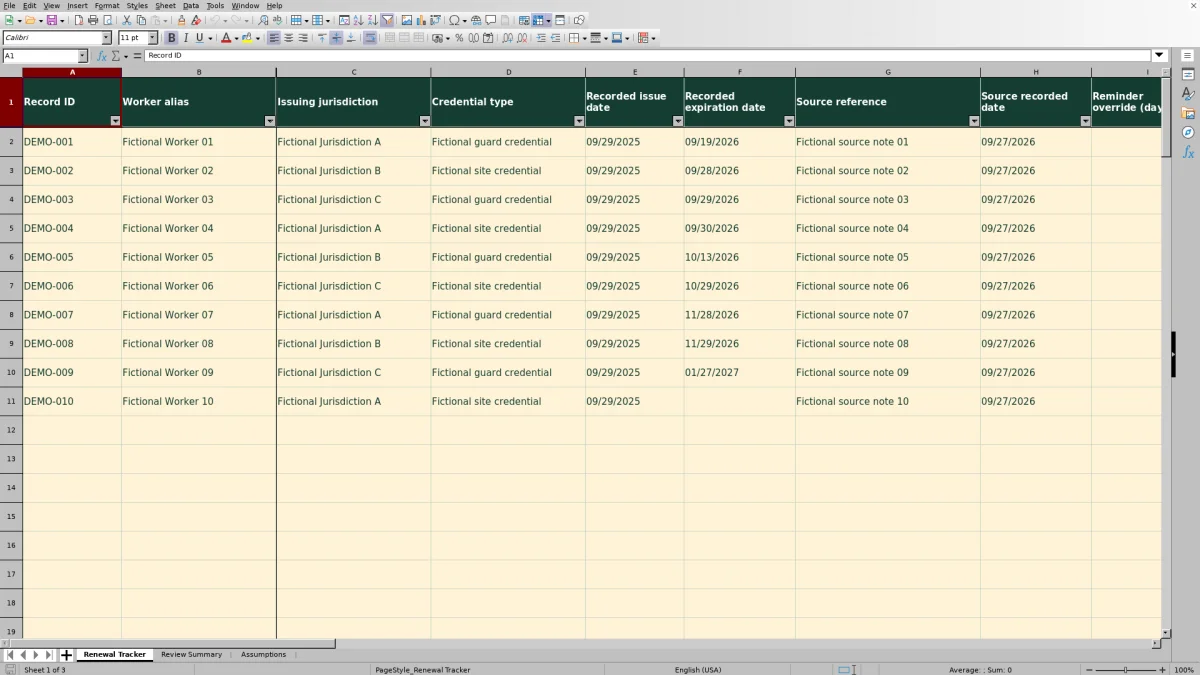
When guard credential dates need review, use the Guard Sheets security guard license renewal tracker to organize the records and decide what needs manual follow-up. This Excel workbook calculates date-based reminders from the expiration dates and reminder lead times you enter.
Keep the issuing jurisdiction, source reference, and next administrative action with each record. Reminders are not licensing verification: the workbook does not establish whether a guard is eligible for a post or supply jurisdictional requirements.
Where this workbook helps
- Focus your review on records past their recorded expiration date or inside your chosen reminder window.
- Keep source references beside credential dates so you know which record to consult when details need checking.
- Separate missing information and invalid reminder inputs from usable date reminders.
- Leave a named action owner and follow-up date for the next administrative handover.
What is in the file
How to get started
1. Set the review basis
On Assumptions, check Review date and Default reminder lead (days). Review date uses TODAY() by default; replace it with a fixed Excel date if you need a reproducible review. Set a nonnegative whole-number lead time based on your own administrative process, not an assumed licensing rule.
2. Prepare the lists and records
Replace the fictional jurisdiction and credential labels on Assumptions with your own labels. On Renewal Tracker, replace or clear the fictional inputs in rows 2–11 without deleting the calculated cells. Use one record for each worker credential per issuing jurisdiction and assign a distinct Record ID.
3. Enter dates and source references
Complete columns A:H, including Worker alias, Recorded issue date, Recorded expiration date, Source reference, and Source recorded date. Enter dates as MM/DD/YYYY without a time component. Leave Reminder override (days) blank to use the default, or enter a nonnegative whole number for that record.
4. Review results and record the next action
Open Review Summary to see the counts, then use the filters on Renewal Tracker to inspect the relevant records. Correct missing or invalid inputs before relying on their reminders. Enter Administrative next action, Action owner, and Follow-up date as needed. Keep columns J:M and Q intact; they contain the calculations, and worksheet protection is not enabled.
Choose a review date and reminder window
Decide whether you are reviewing records as of today or preparing a dated handover. Assumptions!B2 holds Review date. Its default TODAY() formula changes with the current date when recalculated, so the same recorded expiration can move into a different reminder category later. For a review you need to reproduce, enter a fixed date and save a dated copy.
The reminder lead is a planning interval in calendar days. Assumptions!B3 supplies the default, while Reminder override (days) replaces it for an individual record. Blank and zero mean different things: blank uses the default; zero opens the reminder window on the recorded expiration date.
You supply the requirements and timing assumptions. The workbook does not derive renewal deadlines, processing times, or jurisdictional rules. Changing the default affects records without overrides, so review those records before sharing revised counts.
Fictional example: a record reaches its expiration date
Use the included fictional DEMO-003 record to understand the calculation. Fictional Worker 03 has a Recorded issue date of 09/29/2025 and a Recorded expiration date of 09/29/2026. Set Review date to 09/29/2026, keep the fictional default lead at 60 days, and leave the record's override blank.
The Effective reminder lead (days) is 60. Subtracting that lead from the recorded expiration produces a Reminder date of 07/31/2026. Subtracting the review date from the recorded expiration produces 0 in Days to recorded expiration (days). The resulting Reminder status is Within reminder window, because the window includes zero days remaining.
This result means the recorded date is the review date—not that renewal has occurred or that the guard may work an assignment. The next decision is administrative: consult the referenced source, determine what follow-up is needed under your process, and enter the action and owner. The fictional jurisdiction and lead time are not licensing guidance.
Read the summary without double-counting records
Start with Populated records on Review Summary to see how many prepared rows contain editable inputs. Then read the reminder categories: Past recorded date, Within reminder window, Not yet in window, Missing expiration date, and Review invalid input. A negative days-remaining result places a usable record in Past recorded date; a result above the effective lead places it in Not yet in window.
Read completeness separately. Complete means fields A:H are populated, not that their contents have been verified or every date is valid. A record can be Complete and still show Review invalid input. Optional action fields do not affect completeness.
Do not add completeness or follow-up counts to reminder counts; those groups overlap. Review follow-up counts entered follow-up dates earlier than the review date, not dates equal to it. It does not show whether an action was completed.
A zero in one category only means no records in the prepared range meet that category's condition. Check the missing-date and invalid-input counts before treating an empty reminder category as a reason to stop reviewing.
Keep source references useful without treating them as proof
Use Source reference to identify the document or correspondence you will consult if a recorded date is questioned. Enter a reference only, not the document contents or a verification result. Source recorded date keeps a date alongside that reference, but it does not establish that the source is current or authoritative.
Keep separate records when a worker has different credentials or issuing jurisdictions. Use Worker alias and generic Credential type labels rather than sensitive credential identifiers. A consistent Record ID helps you distinguish records during a handover; it should not be a license number.
The jurisdiction and credential drop-downs help keep labels consistent. They are user-maintained lists, not a directory of licensing authorities or a check that a credential applies to a particular post.
Troubleshooting: common errors and solutions
If a reminder is missing or shows an input warning, correct the underlying entry rather than replacing the calculated result. Use these errors and solutions to guide the check.
- Missing expiration date: the record has no Recorded expiration date. Enter the date from the source you are using. Blank days-remaining and reminder-date results are not zero days remaining.
- Check reminder input: the effective lead cannot be calculated from a valid reminder input. Inspect Reminder override (days), or the default on Assumptions if the override is blank. Replace text, negative values, or fractional days with a nonnegative whole number.
- Check date input or Check issue date: the calculation has encountered an invalid date input. Re-enter the affected value as an Excel date without a time component. If many rows have date errors, check the shared Review date first.
- Check date order: the recorded expiration precedes the recorded issue date. Compare both entries with the source and correct the mistaken value. Do not simply swap dates to remove the warning.
- Unexpected duplicate count: inspect Record ID for reused identifiers or accidental copies. Rows with duplicate IDs counts every row sharing a nonblank ID, not just the extra occurrence. Give distinct records distinct IDs after checking what each row represents.
Pasting can bypass validation, so inspect calculated warnings after importing records. Not every field is checked for accuracy. If calculated results are absent or stale, open the workbook in Excel or LibreOffice and recalculate it. If a formula was overwritten, restore it from an intact copy rather than typing a result into the calculated cell.
Hand over follow-up work and update renewed records
Before passing the file to another administrator or supervisor, make the next action specific enough to continue. Administrative next action can describe which recorded detail needs clarification; Action owner identifies who will handle it; Follow-up date sets the next manual review point. These fields are optional, so a Complete record can still have no owner or next action.
The file does not send messages or perform the follow-up. Review earlier follow-up dates with the owner and update the entry to reflect the next administrative step. An earlier date alone does not establish noncompliance or unfinished work.
When a credential is renewed, update its existing record with the new recorded dates and source reference. There is no history archive. If your process requires the previous information, save a dated copy before editing. The supplied calculations and summary cover rows 2–101; do not assume records added below that range will be included.
Compare the workbook with a paper renewal register
For a manual credential-renewal process, a paper register is a realistic alternative to the full Guard Sheets workbook. Both approaches depend on someone entering source-based information, reviewing dates, and carrying out follow-up. The difference is how the records, date checks, and handover information are maintained.
| Method | Records and sources | Renewal-date review | Errors and missing information | Follow-up and upkeep |
|---|---|---|---|---|
| Guard Sheets Excel renewal tracker | Provides 100 prepared records for worker aliases, jurisdictions, credential types, dates, and source references. | Calculates reminder dates and statuses using a review date and user-supplied lead times; summarizes the prepared range. | Provides input validation, selected formula warnings, completeness counts, and duplicate-ID counts. These do not verify the records. | Records next action, owner, and follow-up date. Sends no messages. Formulas must be preserved, and there is no history archive. |
| Paper credential-renewal register | The administrator writes equivalent details and source references in a chosen page layout. | The reviewer compares recorded dates with the review date, applies the chosen lead times, and tallies categories manually. | The reviewer checks missing entries, date order, and duplicate identifiers by reading the register. | The administrator writes actions, owners, and follow-up dates and checks them manually. Earlier entries remain available only if pages and revisions are retained. |
Choose the workbook when you want prepared date calculations, filters, and summary counts for a process within its 100-record range. A paper register may suit a small process where a designated reviewer can maintain the entries and perform the date checks consistently. Neither approach, as described, sends renewal notifications, verifies licensing, or establishes assignment eligibility.
Frequently asked questions
Can I use the tracker for more than one jurisdiction?
Yes. Maintain the Issuing jurisdictions list in Assumptions!D2:D21 and use separate records for each worker credential per issuing jurisdiction. The list supports up to 20 labels. You still supply the relevant requirements and reminder periods; the labels do not apply licensing rules.
Does an incomplete record still receive a reminder?
It can. Reminder calculations and Record completeness are separate. For example, a missing source reference makes the record Incomplete, but usable date and lead-time inputs can still produce a reminder status. Review both results rather than treating either one as an overall approval.
Does filtering Renewal Tracker change the summary totals?
No. Review Summary formulas count records across rows 2–101, including rows hidden by a filter. Use filters to inspect a group of records, but read the summary as a count of the full prepared range.
Are the included records real guard records?
No. Tracker rows 2–11, the sample list entries, owners, sources, and planning lead time are fictional. Replace or clear those editable inputs before using the workbook for your operation, while preserving the calculated columns.
Can I open the file in LibreOffice?
The workbook's instructions identify Excel and LibreOffice as applications for calculating its formulas. Open it in one of those applications and confirm recalculation before reading the results. A file preview may not show calculated values.
Editorial coverage

Naomi WestbrookScheduling & contract records

Adrian MercerPatrol & operational records