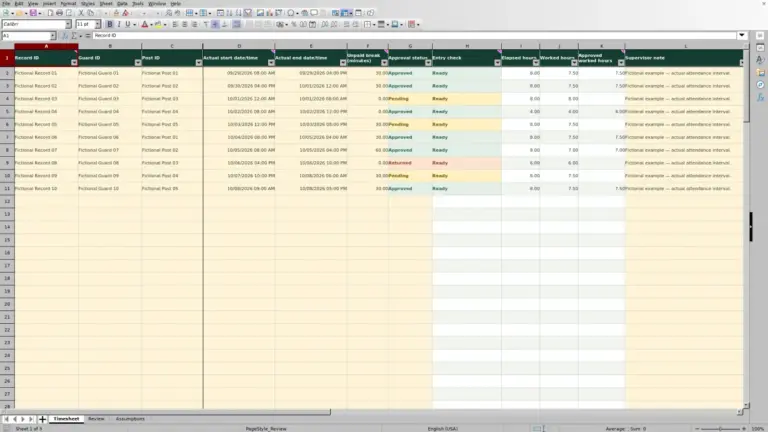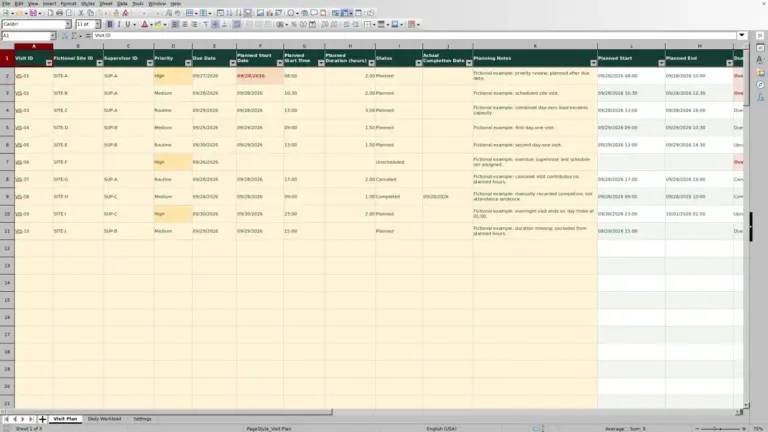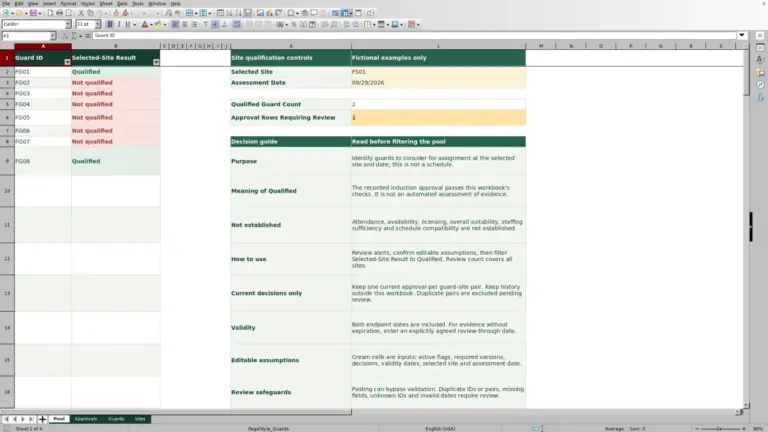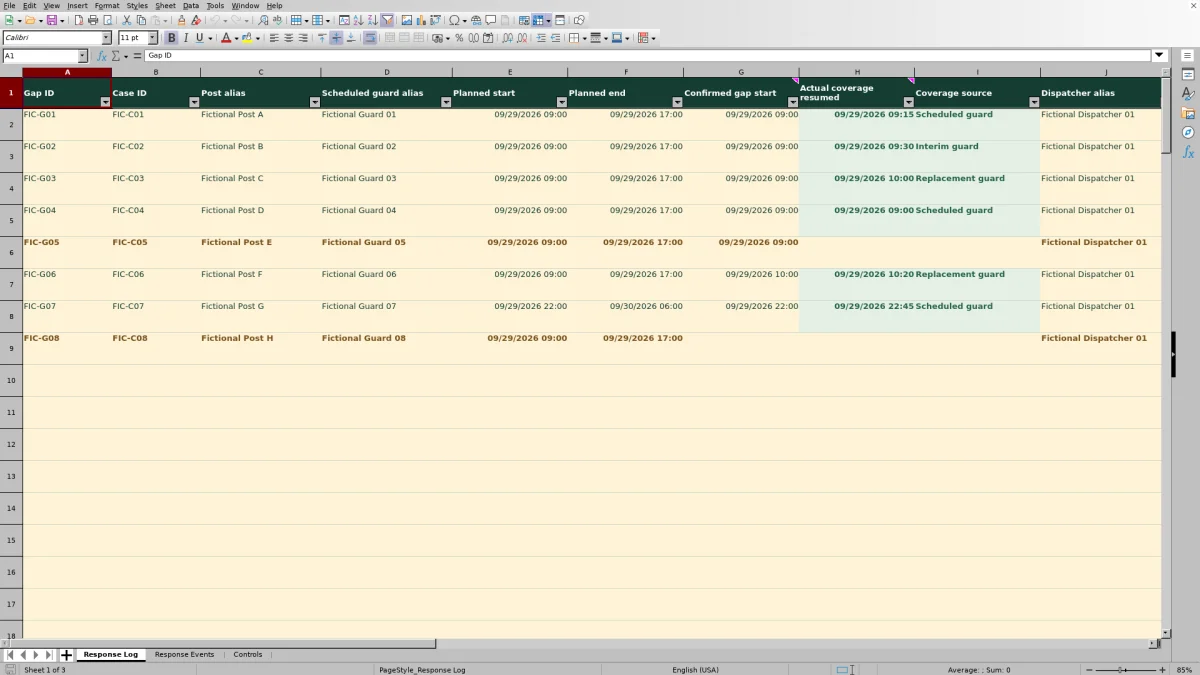
When a guard misses an arrival, keep the confirmed coverage gap separate from the efforts to fill it. The Guard Sheets security guard no-show response log is an Excel workbook for recording uncovered intervals, contact attempts and actual coverage restoration.
Use it to calculate uncovered minutes and prepare a response chronology for handover. You enter and confirm the facts manually; the workbook does not detect attendance, dispatch relief or verify that a guard reached the post. All populated example records are fictional.
Where this workbook helps
- Separate confirmed uncovered time from planned relief arrangements so a contact attempt is not mistaken for restored coverage.
- Review timestamped response events linked to each gap before handing the case to another dispatcher.
- Calculate logged uncovered minutes without counting time beyond the assignment’s planned end.
- Identify input problems and overlapping intervals before using the summary in an operations review.
What is in the file
How to get started
1. Set the reporting cutoff
In Controls, enter the As-of timestamp and Shared local time zone for your report. Use full dates and times in MM/DD/YYYY hh:mm format. The cutoff is a fixed reporting timestamp, not a live clock. Remove fictional sample inputs from your working copy while preserving formulas.
2. Enter one confirmed gap
In Response Log, assign a unique Gap ID and a Case ID. Enter Post alias, Scheduled guard alias, Planned start, Planned end, Confirmed gap start and Dispatcher alias. Leave Actual coverage resumed blank until coverage is manually confirmed. Enter inputs in columns A–K; preserve the calculated columns L–O.
3. Record each response event
In Response Events, add a unique Event ID, select the matching Gap ID and enter Actual event timestamp, Event type, Staff alias, Factual outcome and Recorded by. Use a separate row for each contact attempt or coverage event. An event entry does not update Response Log for you.
4. Confirm restoration and review the report
When coverage is confirmed, enter Actual coverage resumed and select Coverage source in Response Log. Review Input check and Overlap check, then Event check in Response Events. In Controls, examine the review indicators and Minutes completeness before sharing Usable uncovered minutes.
Define the gap before counting missed coverage
A late guard and an uncovered post are not necessarily the same thing. If relief remained at the assignment, the missed arrival alone does not establish an uncovered interval. Record the confirmed gap start, rather than assuming it always equals Planned start.
Each Response Log row represents one continuous confirmed uncovered interval at one required post slot. If interim coverage restores the post and later ends, record a new Gap ID under the same Case ID for the next confirmed gap. Do not stretch the first interval across time when the post was covered.
Where an assignment requires multiple guards, use a distinct Post alias for each required slot. Staffing requirements are your operational assumptions; the workbook does not determine how many guards a client needs. Consistent slot aliases also let the overlap check compare the intended records.
Fictional example: an interim guard closes the gap
The supplied fictional record FIC-G02 concerns Fictional Post B on 09/29/2026. Planned start is 09:00 and Planned end is 17:00. Confirmed gap start is 09:00, and Actual coverage resumed is 09:30 with Coverage source set to Interim guard. All times use the same local time zone.
For a valid record, Effective interval end takes the earlier of Planned end and the recorded resumption time. Here it is 09:30. The workbook subtracts the gap start, converts the Excel day fraction to minutes and rounds to one decimal place: 30.0 uncovered minutes.
The linked fictional events show a missed arrival, an unanswered contact attempt at 09:05, contact with an interim guard at 09:12 and confirmed interim coverage at 09:30. The earlier contact did not end the gap; confirmed coverage did.
The result describes the uncovered interval, not a late-arrival penalty or a billable amount. Before handing over the case, check that the confirmation event agrees with the resumption entry and that the row has no input or overlap issue. Any decision about who covers the remainder of the assignment stays outside the calculation.
Report an open gap without treating the cutoff as restoration
When Actual coverage resumed is blank, the workbook uses the As-of timestamp from Controls as the candidate interval end. It then caps Effective interval end at Planned end. This lets you report an open recorded gap through a stated cutoff without extending its minutes beyond the planned assignment.
A blank resumption is not a live status signal. Missing resume confirmation counts records without that timestamp; it does not prove a post remains uncovered after Planned end. Follow up on the missing information rather than treating the counter as current attendance.
Update As-of timestamp deliberately when preparing a new report. Open-gap results do not advance with the clock. When a resumption is entered, the calculation uses that timestamp, capped at Planned end, instead of the reporting cutoff. Preserve a dated copy before changing inputs if you need to retain what was reported at an earlier handover.
Build a chronology the next dispatcher can follow
Append each action as a new row in Response Events. Use Actual event timestamp for when the event occurred, and use Factual outcome to distinguish no reply, a planned arrangement and confirmed coverage. Do not describe an expected arrival as an actual arrival.
Filter by Gap ID and sort the event records by Actual event timestamp, keeping each row’s fields together. For a case with more than one gap, first identify its Gap IDs in Response Log, then review the related events. That keeps separate uncovered intervals connected without combining them into one continuous gap.
Update both records when coverage resumes: enter the confirmation event in Response Events and the actual resumption time in Response Log. The event list documents the sequence but does not close the gap automatically. Before handover, reconcile those entries and make any remaining uncertainty clear in Notes or Factual outcome.
Troubleshooting missing minutes and event warnings
- Blank minutes are not zero minutes. If Input check is not OK, Effective interval end and Uncovered minutes stay blank. For Incomplete, check the identifiers, required aliases, planned timestamps, confirmed gap start and reporting cutoff.
- If Input check shows Check inputs, check whether dates and times are genuine Excel date-time values rather than text. Re-enter them as full dates and times. Planned end must follow Planned start, the gap start must fall within the planned interval, and resumption must not precede the gap start.
- For Duplicate Event ID, give distinct events distinct identifiers. If the row is an accidental duplicate, reconcile it before removing it rather than assigning it a new identifier just to clear the warning.
- For Missing Gap ID, check that the event points to an existing Response Log record. For Ambiguous Gap ID, resolve duplicate Gap IDs in that log and then confirm which interval the event belongs to.
- For an incomplete event, fill all event input fields, including Factual outcome and Recorded by, and check the reporting cutoff.
A displayed 0.0 minutes means the calculated interval contributes no positive duration. Check the timestamps before interpreting it as evidence that coverage was uninterrupted. The checks assess entered records; they cannot establish what happened at the post.
Resolve overlaps before using the minute total
Overlap check compares positive-duration intervals with the same Post alias. If they intersect, it can display Review overlap. Investigate whether the rows duplicate the same gap, have incorrect timestamps or actually refer to different required post slots.
The workbook excludes flagged overlaps from Usable uncovered minutes; it does not merge them into one corrected interval. Correct the records based on the facts. Do not change an alias merely to make the warning disappear.
In Controls, Records needing review counts recorded gaps excluded from the usable total. Minutes completeness can show Partial—resolve excluded records or Complete for recorded gaps. Even the complete label applies only to recorded gaps, not every required assignment or every possible missed arrival.
Also check Input rows missing a Gap ID and Events needing review separately. Rows without a Gap ID do not count as Recorded gaps, and a usable minute total does not mean the supporting event chronology is complete. Read these indicators together before presenting the report.
Compare this workbook with a paper no-show log
Both methods depend on a dispatcher entering accurate facts. Choose based on whether the task needs calculated intervals and linked event review or a handwritten record that someone will reconcile later.
| Method | Uncovered time | Response chronology | Review work | Operational boundary |
|---|---|---|---|---|
| Guard Sheets Excel workbook | Calculates valid recorded intervals, capped at planned end; excludes overlap-flagged rows from usable minutes. | Separate timestamped events linked by Gap ID, with filters for review. | Provides input, identifier and overlap checks; the dispatcher resolves the issues. | Manual entry and confirmation, with fixed prepared record ranges; no automatic dispatch or attendance verification. |
| Paper no-show log | The reviewer calculates elapsed minutes and applies any reporting cutoff manually. | Actions can be written in sequence with a case or gap reference. | The reviewer checks omissions, duplicate entries and overlapping times manually. | Can be written without Excel, but totals and cross-references require manual reconciliation. |
Use the workbook when you need repeatable interval calculations and a filterable response history within its prepared capacity. A paper log may suit handwritten capture when Excel is unavailable. If you later transfer it, retain the actual event times and check that gaps and events have not been entered twice.
Frequently asked questions
How should I enter an overnight assignment?
Enter the full date and time for every timestamp. For an overnight assignment, Planned end must use the following calendar date when appropriate; a time alone can put it before Planned start. Use MM/DD/YYYY hh:mm and the Shared local time zone in Controls. There is no automatic time-zone conversion, so review records spanning a daylight saving time change separately rather than assuming the local-time subtraction represents elapsed time correctly.
Can I add more than 100 gaps or 300 events?
The prepared ranges support 100 gap records and 300 response events. Rows typed below those ranges are not covered by the supplied formulas, validation and summary references. Use a separate working copy when appropriate, or extend and test all affected ranges before relying on an expanded file.
Does the workbook notify a guard or assign relief?
No. It records contact attempts and coverage facts you enter. Calls, messages, relief assignments and confirmation of attendance take place through your existing operational process. Selecting an event type or coverage source does not send a notification.
Should I keep the fictional records in my working log?
No. Use them to understand the workflow, then remove the sample inputs from both logs in your working copy while preserving formulas and validation. Set your own reporting cutoff and time-zone assumption. Otherwise, fictional gaps and events can remain mixed into the review indicators.
What information belongs in the notes?
Keep Notes and Factual outcome focused on the coverage decision, contact result and source of confirmation. Use the alias fields for guards, staff and posts, and avoid unnecessary personal information, site access codes or sensitive incident details. The workbook is a coverage-response record, not a substitute for a separate detailed incident record when one is needed.
Editorial coverage

Naomi WestbrookScheduling & contract records

Adrian MercerPatrol & operational records