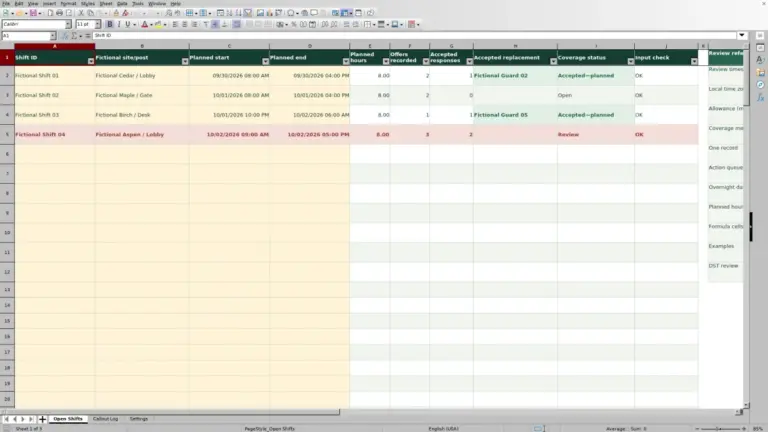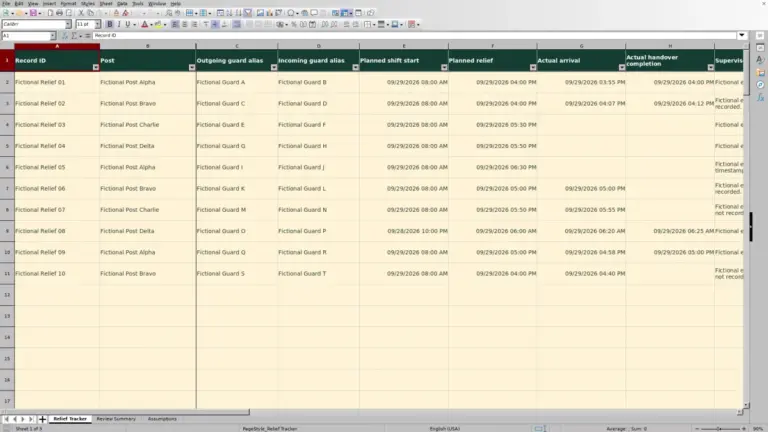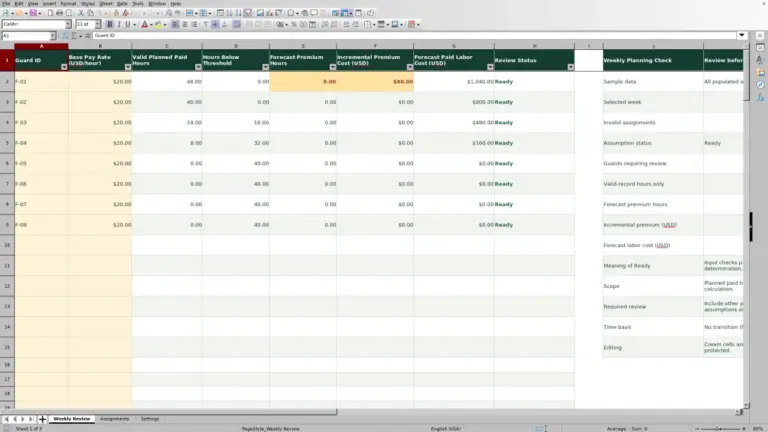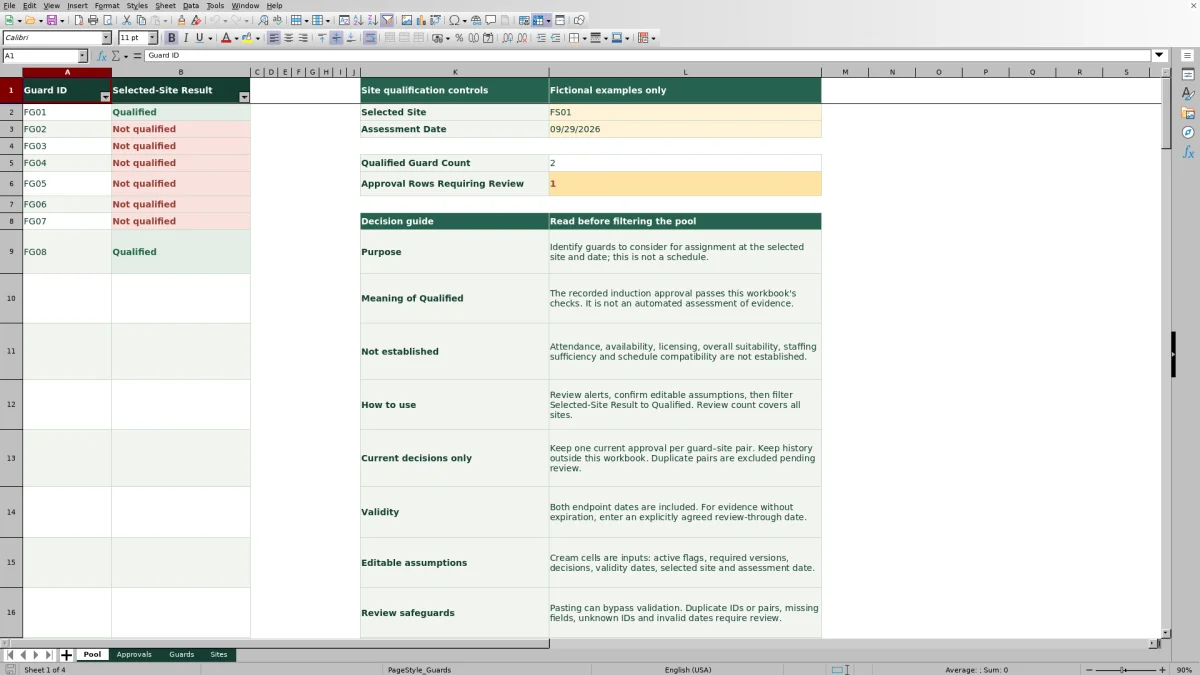
Before choosing a guard for a client post, check whether the recorded site induction approval supports that assignment. The Guard Sheets security guard site qualification matrix uses your entries to show a candidate pool for a selected site and assessment date.
This Excel workbook supports recorded approval checks, not scheduling. A Qualified result means the approval passes the workbook’s checks; it does not establish availability, attendance, licensing, overall suitability, or sufficient staffing.
Where this workbook helps
- Narrow the assignment discussion to guards whose recorded approvals pass the selected-site checks.
- Assess approvals against a chosen date instead of relying only on an Approved decision.
- Find records needing attention before using the candidate pool.
- Keep current guard–site approval decisions in a consistent format for handover.
What is in the file
How to get started
1. Set up your guard and site records
Save a working copy and replace the fictional examples in the cream input cells. In Guards, enter one unique Guard ID per guard and set Active to Yes or No. In Sites, enter unique Site ID values, active status, and the Required Induction Version. Use nonsensitive site labels rather than addresses or access details.
2. Enter each current approval
In Approvals, complete Guard ID, Site ID, Induction Version, Decision, Valid From, Valid Through, Evidence Reference, and Reviewer Alias. Use one current record per guard–site pair. Enter dates as actual spreadsheet dates displayed in MM/DD/YYYY format, not text or date-time values.
3. Choose the site and assessment date
On Pool, select the site in Selected Site at L2. Check Assessment Date at L3: it starts with TODAY(), so it changes with the date. Enter a fixed date when assessing a specific assignment date. Open the file in Excel or LibreOffice and recalculate before relying on results; cached results are not supplied.
4. Resolve flags and filter the pool
Read Approval Rows Requiring Review and investigate Review results in Approvals. That count covers all sites. After checking the inputs and settings, filter Selected-Site Result to Qualified. Confirm availability and assignment requirements separately before putting a guard on the roster. Do not overwrite result formulas; the worksheets are not sheet-protected.
Read the pool as a candidate list, not a coverage plan
Use the pool to decide which guard records deserve further consideration for a particular site. With valid site and date settings, the workbook returns Qualified when it finds exactly one matching Eligible approval for that guard and selected site.
Qualified has a narrow meaning: the recorded induction approval passes this workbook’s checks. It is not an independent assessment of the supporting evidence. A Not qualified result means the record does not establish eligibility under those checks; investigate the approval rather than treating the label as a judgment of the guard’s abilities.
Qualified Guard Count is a count of candidate guards, not covered posts or available shifts. Before making an assignment, use your separate roster and operational process to confirm availability, schedule compatibility, and any other applicable requirements.
Set the assessment date for the decision you are making
Check Assessment Date before reviewing tomorrow’s relief or a later assignment. Leaving TODAY() in place assesses the records against the current date when the workbook recalculates, not necessarily the date of the planned work.
The validity check includes both endpoint dates: Valid From and Valid Through. If the evidence has no expiration, enter an explicitly agreed review-through date. Do not leave Valid Through blank to imply indefinite approval, and do not invent a universal renewal period.
The workbook uses whole dates, not shift start and end times. For an overnight shift, decide outside the workbook which dates must be assessed under the client’s requirements. Do not assume a result for the shift’s starting date establishes approval throughout a shift that crosses midnight.
Handle induction changes without mixing current and old decisions
When a client changes its required induction version, confirm the new requirement before editing Required Induction Version in Sites. Each approval must match the site’s current required version. Changing the site requirement is not evidence that a guard has completed the updated induction.
Update the corresponding approval only when your source records support the new decision, version, and validity dates. Keep one current approval per guard–site pair. Adding a second row for the same pair does not create usable history: duplicate pairs are excluded pending review.
Keep earlier decisions outside this workbook. Before replacing a current record, preserve the prior information using your company’s recordkeeping process. The file is designed for current decisions, not a chronological approval audit trail.
Fictional example: reproduce a site’s candidate count
Use the supplied fictional records to learn the workflow before entering operational data. Set Selected Site to FS01 and Assessment Date to 09/29/2026, then recalculate. FS01 is active and requires induction version V2.
For fictional guard FG01, Active is Yes. The approval records V2, Approved, Valid From 09/19/2026, and Valid Through 10/29/2026, with Fictional evidence 01 and Fictional reviewer A entered. The assessment date falls within that validity period, so this record supports an Eligible approval and a Qualified pool result. Fictional guard FG02 has an Approved V2 record, but its Valid Through date is 09/28/2026; it does not qualify on the assessment date.
For the complete supplied fictional dataset, the documented reference result is 2 qualified guards for FS01 and 1 approval row requiring review across all sites. This means there are two recorded candidates to consider, not two confirmed guards available for duty. Investigate the review row, then check the candidates against the separate roster before choosing an assignment.
The reference result is a benchmark to reproduce after recalculation, not a supplied cached spreadsheet result. If your result differs, check the date and whether the fictional records have been edited.
Troubleshooting review flags, blank counts, and exclusions
Do not change a decision to Approved merely to remove a warning. First identify whether the problem is a setting, an incomplete record, or an approval that does not meet the recorded requirement.
- Review settings: Check Pool’s Selected Site and Assessment Date. The selected ID must occur exactly once in Sites, and the date must be a valid whole spreadsheet date. A missing, unknown, or duplicated selected site requires correction.
- Review in Eligibility Check: Inspect all eight input fields in that approval row. Resolve missing information, unknown IDs, duplicate guard–site pairs, and invalid dates. Check that Valid Through is not earlier than Valid From.
- Unexpected Not qualified: Check the approval decision, validity period, induction version, and active statuses. Also inspect duplicate guard or site IDs. An Approved decision alone is not enough.
- Problems after pasting: Pasting can bypass input validation. Review the calculated results and duplicate highlights after importing or copying records.
- Missing or fixed results: Check whether a formula was overwritten. Restore the affected formula from an intact copy and recalculate before using the pool.
A blank Qualified Guard Count can indicate invalid settings; it is not the same as zero. With valid settings, zero means no listed guards currently pass the selected-site checks. A completely unused approval row has a blank result and does not need a placeholder record.
Keep the working copy reliable during handover
Before handing the candidate list to another dispatcher, identify the selected site and assessment date with the result. Review Approval Rows Requiring Review as an all-site count, not a count limited to the site currently displayed. Clear or reapply filters as needed so unresolved records are not overlooked.
The prepared capacity is a practical limit: Guards and Approvals use rows 2–101, while Sites uses rows 2–21. Approval capacity counts guard–site pairs, so one guard with several site approvals uses several approval rows. Do not assume records pasted below those ranges will be included in calculations, validation, or filters.
Keep a dated copy when you need to preserve the inputs used for a decision, and use a fixed Assessment Date for that snapshot. A copy that retains TODAY() can show different results when recalculated later. If you need greater capacity, have the affected ranges and formulas deliberately extended and tested before relying on additional rows.
Compare the Excel matrix with a paper approval binder
A realistic alternative to this workbook is a paper binder organized by client site, with current induction approval records and a manually prepared candidate list. Both workflows depend on your source records. The difference is how you maintain the information, check it for an assignment date, and pass the result to the next dispatcher.
| Method | Preparing a candidate list | Maintaining current records | Handover and history | Work still required before assignment |
|---|---|---|---|---|
| Guard Sheets site qualification workbook | Enter guard, site, and approval records; select a site and date; recalculate and filter the calculated results. | Prepared validation and review checks help identify record problems. Capacity is 100 guards, 20 sites, and 100 current guard–site approvals. | Keep a dated copy with a fixed assessment date when preserving a decision snapshot. Earlier approval decisions belong outside the working workbook. | Verify supporting evidence through your own process, resolve flagged records, and separately confirm availability and schedule compatibility. |
| Paper approval binder with a handwritten candidate list | Read the selected site’s records, compare each approval with the intended date and induction requirement, then write the candidate list. | Manually check completeness, dates, versions, and duplicate records when filing updates and preparing the list. | Date the candidate list and distinguish current records from superseded paperwork through your filing process. | Verify supporting evidence through your own process, resolve unclear records, and separately confirm availability and schedule compatibility. |
Use the workbook when repeated site-and-date checks fit your operation and its prepared capacity. A paper binder may be adequate for a small, infrequently changing set of approvals when you can consistently perform and document the checks manually. Neither approach establishes staffing sufficiency or communicates assignments to guards; keep those tasks in your separate scheduling and communication workflow.
Frequently asked questions
Does entering an evidence reference verify the induction?
No. Evidence Reference records your reference text; the workbook does not inspect or authenticate the underlying evidence. Reviewer Alias is also a user-entered field, not proof that a review took place or a review service provided by Guard Sheets.
Can one guard qualify for more than one site?
Yes. Use a separate current approval record for each guard–site pair, with the relevant version, decision, dates, and reference information. Pool assesses one selected site at a time. Do not duplicate the same guard–site pair.
Does Active mean the guard is available for a shift?
No. Active in Guards is an editable operational assumption, not an attendance or availability record. Confirm shift availability separately. Similarly, an inactive site returns no qualified guards; that setting is not a staffing forecast.
Can I use the file in LibreOffice?
The workbook’s instructions call for opening it in Excel or LibreOffice and recalculating before using the results. Cached results are not supplied. The supplied checks are not spreadsheet-engine recalculation tests, so reproduce the fictional benchmark in your application before relying on operational results.
Does the matrix check guard licenses or notify guards of assignments?
No. It checks recorded site induction approvals within its prepared fields and formulas. It does not perform licensing checks, create a schedule, dispatch guards, or notify them. Keep those decisions and communications in your separate operational workflow.
Editorial coverage

Naomi WestbrookScheduling & contract records

Adrian MercerPatrol & operational records