When a guard shift is uncovered, keep the offer history clear for the next dispatcher. The Guard Sheets Security Open Shift Callout Log is an Excel workbook for recording contact order, response deadlines and the accepted replacement for a post.
You enter the offers and responses, then review the workbook’s counts and follow-up labels. Acceptance means planned coverage, not confirmed attendance. All prefilled operational records, guard IDs, post labels and the starting review timestamp are fictional examples.
Where this workbook helps
- Keep each shift’s contact sequence together so the next dispatcher can see which offers were recorded.
- Review pending offers against a manually updated timestamp to decide which need follow-up.
- See recorded offer and acceptance counts beside the shift instead of recounting log entries.
- Carry a planned replacement and unresolved input issues into the shift handover.
What is in the file
How to get started
1. Set the review reference
Save a working copy and open Settings. Update Review timestamp, confirm Local time-zone label and select the appropriate Daylight-saving review mode. Set Response allowance (minutes) to your operating assumption. The timestamp is a manual review clock; it does not advance with the current time.
2. Enter the uncovered assignment
Replace fictional sample inputs without clearing formula cells. In Open Shifts, enter a unique text Shift ID, the post label in Fictional site/post, and full Planned start and Planned end dates and times. Use one record for one required guard at one post. For an overnight assignment, use the next calendar date for the end.
3. Record each offer separately
In Callout Log, select the Shift ID and Guard ID. Enter Contact sequence, Offered at, the actual Response deadline and Response. Record Responded at when a response is received, and use Dispatcher note for concise operational context. A reoffer belongs on a separate row. Suggested deadline is a reference, not a substitute for the actual deadline.
4. Review the queue and replacement
Check Input check before relying on a row. Refresh the review timestamp, then filter Follow-up for Follow up or Review input. In Open Shifts, review Accepted responses, Accepted replacement and Coverage status before handing over. Make calls or send messages through your normal process; the workbook does not contact guards.
Give each required guard a separate shift record
Decide what each Shift ID represents before recording offers. This workbook treats one shift record as one required guard at one post. If a post needs multiple guards during the same period, create a separate Shift ID for each required assignment. Otherwise, several legitimate acceptances could look like conflicting replacements for a single requirement.
Keep Shift IDs unique and use the same ID when selecting the assignment in Callout Log. The Open Shifts validation requires text IDs and excludes the characters *, ? and ~. Use stable labels rather than changing an ID after offers have been recorded; the offer counts and replacement lookup depend on matching IDs.
Contact sequence records the order you enter for that shift. Use positive whole numbers, with no duplicate Shift ID/sequence pairs. Gaps are allowed, so you do not need to renumber every entry after a correction. The sequence documents your contact order; it does not choose the next guard or establish eligibility for the assignment.
Fictional example: turn a deadline into a follow-up decision
The prefilled Fictional Shift 02 example shows an offer to Fictional Guard 03 at 06:26 PM on 09/29/2026. With a Response allowance (minutes) of 30, Suggested deadline adds that allowance to Offered at and returns 06:56 PM on the same date. The recorded Response deadline is also 06:56 PM, and Response is Pending.
The fictional Review timestamp is 07:16 PM. With Input check showing OK, Follow-up returns Follow up because the recorded deadline is at or before the review time. Comparing those timestamps shows that the deadline passed 20 minutes earlier; that elapsed interval is an interpretation of the timestamps, not a separate calculated field.
The next decision is yours: check for a response and take the next contact action under your company’s process. A follow-up label does not mean a reminder was sent or that the guard declined. These times use the workbook’s stated local zone, Eastern Time (US), and do not cross a daylight-saving change.
The allowance is a user-supplied assumption, not a required response window. Changing it recalculates Suggested deadline but leaves the actual Response deadline unchanged. Keep the actual deadline consistent with the offer you communicated.
Read the planned replacement without assuming attendance
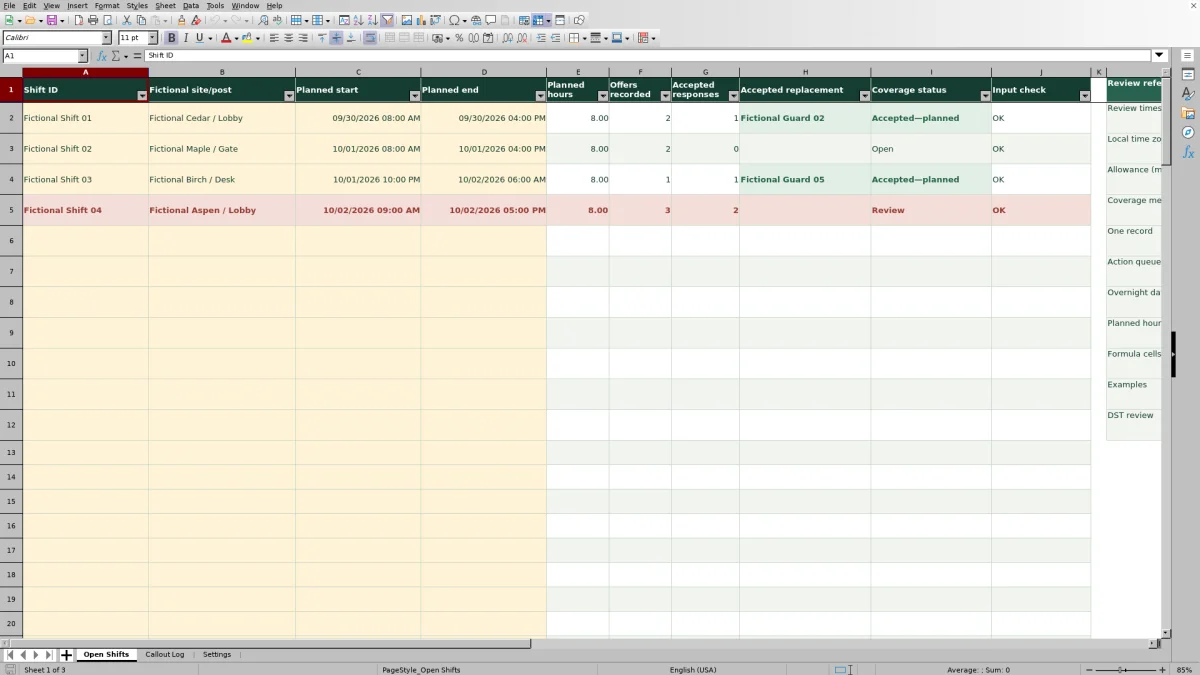
Use the acceptance summary to identify the recorded replacement, not to close out attendance. In the fictional Fictional Shift 01 records, one offer is Declined and a later offer to Fictional Guard 02 is Accepted with a Responded at timestamp. Those entries produce two Offers recorded and one Accepted responses; the accepted-key lookup identifies Fictional Guard 02 as the Accepted replacement.
Coverage status shows Accepted—planned when the shift’s Input check is OK, there is exactly one accepted response and a replacement is returned. Review the corresponding Callout Log input check as well: the replacement lookup is not a qualification, schedule-conflict or attendance check.
Multiple acceptances need resolution. More than one Accepted response makes Coverage status show Review and leaves Accepted replacement blank. Do not assume the first or latest respondent was selected. Confirm the intended assignment outside the workbook, then correct the response records to reflect the actual decision and explain the correction in Dispatcher note.
A zero acceptance count means no matching log row is recorded as Accepted. It does not establish that no guard has agreed through an unrecorded call or message. Reconcile the log with your communications before deciding the shift is still unassigned.
Enter overnight dates before trusting planned hours
Planned hours subtracts Planned start from Planned end and converts the Excel date difference to hours. Both inputs must be numeric Excel date-time values, and the end must be later than the start. A blank result can therefore indicate missing or invalid inputs rather than a zero-hour assignment.
The fictional Fictional Shift 03 starts at 10:00 PM on 10/01/2026 and ends at 06:00 AM on 10/02/2026. The next-day end produces 8.00 planned hours. Entering the morning end on the start date would put it before the start and leave Planned hours blank. Check the calendar date before changing a formula.
Use MM/DD/YYYY dates with AM/PM times and one stated local time zone throughout the file. The Local time-zone label provides context; it is not a time-zone conversion. Review daylight-saving transitions separately before relying on local-time subtraction. Select the appropriate Daylight-saving review mode in Settings, but do not treat that selection as proof that elapsed hours were adjusted.
Troubleshooting blank results and review labels
Start with the source inputs when a result looks wrong. Do not type over an output to make the summary appear complete.
- Set deadline: For an otherwise valid Pending row, Response deadline is blank. Enter the actual deadline you communicated; Suggested deadline alone does not drive follow-up.
- Set review time: The pending offer has a deadline, but Settings has no Review timestamp. Enter the timestamp for your review. If a label seems stale, also check whether that timestamp was left at an earlier value.
- Review input: Check the row’s inputs and Settings. Verify the selected Shift ID and Guard ID, a positive whole-number Contact sequence, and numeric Excel dates and times. A response timestamp cannot precede Offered at, and a Pending record should not have Responded at filled in.
- Blank Accepted replacement with one acceptance: Check the accepted log entry for a Guard ID and Responded at value, and confirm its Shift ID matches exactly one Open Shifts record. The accepted-key formula needs those entries to return a match.
- Offers recorded seems too low: Check for offers entered under a different Shift ID or outside rows 2–101. The count covers matching records in the prepared range, not calls or messages made elsewhere.
Formula cells are intentionally unprotected. If an output was overwritten, recover it from a clean copy and recheck the affected records. Editing a displayed result instead of its source breaks the connection between the offer history and the summary.
Prepare a clear handover within the workbook’s limits
Before handing the file to another dispatcher, refresh Review timestamp and review unresolved input issues. Filter Callout Log by Shift ID and sort the full log range by Contact sequence so each guard, offer time and response stays on the same row. Sorting only the sequence column would separate the order from its records.
Use Dispatcher note to explain the next action or a corrected entry without adding sensitive site details. Keep reoffers as separate records rather than overwriting the earlier attempt. Save a dated handover copy before substantial changes if you need to preserve the earlier state; do not assume the workbook maintains an edit history.
Capacity is shared across all shifts. Open Shifts has 100 prepared assignment rows, and Callout Log has 100 prepared offer rows in total—not 100 offers for every shift. Several offers for one assignment consume several log rows. Check remaining space before starting another callout cycle.
The summary formulas and dropdown helpers use fixed ranges. Adding rows below the prepared area does not by itself extend those references. Use a fresh copy for a separately managed period, or have the ranges deliberately extended and tested before relying on additional records.
Compare with a paper callout log
Both methods can document a dispatcher’s offer history. The choice depends on whether your handover needs calculated summaries and filtered review, or a simple written record that someone will review manually.
| Method | Contact history | Deadline review | Replacement summary | Ongoing upkeep |
|---|---|---|---|---|
| Guard Sheets Excel workbook | Records offers by Shift ID, with a entered contact sequence and filters. | Compares pending deadlines with a manually entered review timestamp. | Counts recorded acceptances and returns a replacement when the lookup conditions are met; multiple acceptances require review. | Requires accurate inputs, preserved formulas and attention to fixed row limits. |
| Paper callout log | Can record the same offer details in a written sequence. | Requires the dispatcher to compare each deadline with the review time. | Requires someone to identify and write the intended replacement from the recorded responses. | Requires legible entries, manual corrections and a filing method for handover copies. |
Use this workbook when filtering pending offers and summarizing recorded acceptances help your dispatch routine. A paper log may be sufficient for a small number of offers reviewed directly at one desk. Neither method confirms attendance or contacts guards merely because an offer is recorded.
Frequently asked questions
Does a missed deadline automatically become No response?
No. An otherwise valid Pending entry becomes Follow up when its recorded deadline is at or before Review timestamp. Response remains Pending until you change it. Record No response only when that describes the outcome you are documenting under your operating process.
Can I use this as a full guard roster or availability system?
This file is for uncovered assignments and their offer history. The verified workbook does not provide a full roster, availability checks, overlapping-assignment checks or guard qualification checks. Confirm suitability and availability through your separate staffing process before treating an acceptance as the planned assignment.
How many guard IDs are available in the dropdown?
The guard dropdown uses eight editable entries in Settings, cells D2:D9. The starting IDs are fictional. Keep replacement IDs unique and nonblank. Adding an ID below that range will not automatically include it in the current dropdown; expanding the list requires updating and testing the relevant references and validation.
Can Planned hours be used for payroll or client billing?
Not on its own. Planned hours is the difference between the entered shift start and end. The workbook explicitly identifies it as neither paid hours nor billable hours. Use your separate approved records and applicable pay or billing assumptions for those tasks.
Can the workbook send offers or notify a supervisor?
No messaging, automatic dispatch or notification function is supported by the verified workbook. You make the contact, record the result and communicate unresolved assignments to the appropriate person through your normal process.
Editorial coverage

Naomi WestbrookScheduling & contract records

Adrian MercerPatrol & operational records