Before you share the weekly schedule, check which post slots still need a guard. The Guard Sheets security guard schedule template for Excel lets you enter dated assignments, check them against recorded availability, and review planned unfilled hours.
You supply the required slots and choose the guards. The workbook summarizes planned coverage only; it does not dispatch guards, confirm attendance, or detect overlapping assignments. All prefilled records are fictional samples and must be replaced before operational use.
Where this workbook helps
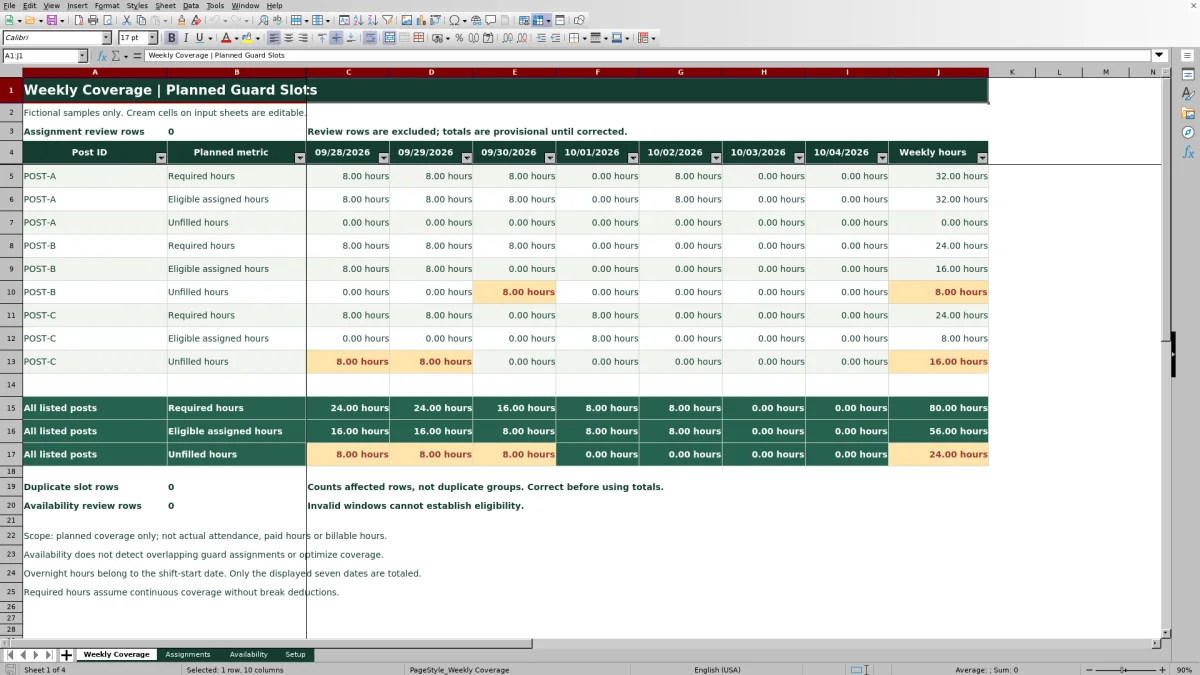
- See required, eligible assigned, and unfilled hours by post and day before sharing the schedule.
- Keep an open slot in the coverage requirement even when no guard has been selected.
- Identify assignments that are not fully covered by a recorded availability window.
- Use review counts to find input problems that could make coverage totals incomplete.
What is in the file
How to get started
1. Set your references and planning week
Open the file in Excel with recalculation enabled. On Setup, replace the fictional Guard ID and Post ID entries in the cream-colored input cells. Keep each ID unique. Set Week start to the first date you want displayed; its initial formula uses the current Monday.
2. Record guard availability
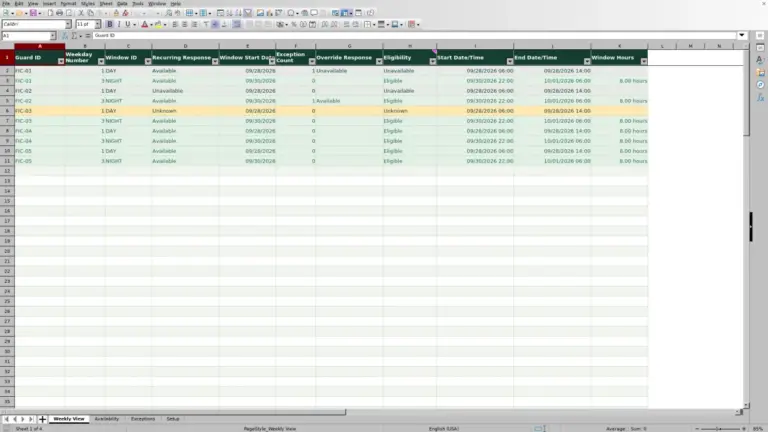
On Availability, enter Guard ID, Available from, and Available through. Use full dates and times, such as MM/DD/YYYY followed by an AM/PM time. Check Input status and correct any Review result. Each matching window must cover a complete shift.
3. Enter every required slot
On Assignments, enter Shift start date, Post ID, Slot ID, Start time, and End time. Add Guard ID when you have selected a guard, or leave it blank to retain an open requirement. Use a separate row for each required guard slot. Keep shifts shorter than 24 hours.
4. Resolve exceptions before sharing
Check Input status and Availability result on Assignments, then inspect Weekly Coverage. Correct Review rows first because they are excluded from coverage calculations. Check guard overlaps separately, resolve the remaining unfilled slots, and save a dated copy before distributing the schedule through your normal process.
Build the full requirement before assigning guards
Start with the coverage the client needs, not just the guards you already have available. One assignment row represents one required guard slot. If a post needs two guards at the same time, enter two rows with distinct Slot ID values. Staffing quantities are your planning assumptions, not minimums established by the file.
The workbook calculates Required hours from each valid row's start and end times. It does not hold a separate staffing requirement against which it can discover omitted slots. If you leave a required slot out entirely, neither its required hours nor its unfilled hours will appear.
Leave Guard ID blank when coverage is still open. A valid row then shows Unassigned, retains its required hours, and contributes zero eligible assigned hours. Before filling gaps, compare the entered slots with the agreed post schedule so that a missing record is not mistaken for a covered requirement.
Fictional example: a guard available for only part of a shift
The supplied fictional records include GUARD-05 assigned to POST-C, Fictional slot 06, on 09/29/2026 from 8:00 AM to 4:00 PM. The guard's fictional availability window runs from 8:00 AM to noon that day.
The shift requires 8.00 hours. Because the availability window does not contain the entire shift, Availability result is Outside availability. The row therefore produces 0.00 eligible assigned hours and 8.00 unfilled hours. Unfilled hours are calculated as required hours minus eligible assigned hours.
This does not mean the guard has no availability. It means the workbook gives no partial credit to that assignment. Choose a guard whose confirmed availability covers the full shift, or, if you arrange a relief handover, replace the original requirement with separate, non-overlapping slot records for the agreed segments. Do not retain the original full-shift row as well, because that would add an extra requirement.
To inspect this record in Weekly Coverage, set Week start to 09/28/2026. Changing the summary week does not move the dated assignment or availability records.
Read availability as a window match, not a staffing clearance
An Available result means the listed guard has at least one valid Availability row whose timestamps contain the entire assignment. Adjacent windows are not combined. If a continuous period was entered as separate windows, confirm the actual availability before replacing them with a single continuous record.
An invalid availability row shows Review and cannot establish eligibility. Check the Guard ID against Setup, enter both timestamps as Excel date/time values, and make sure Available through is later than Available from. Selecting a guard from the dropdown is not enough to complete a valid window.
The matching calculation does not compare that guard's assignments with each other. A guard can receive Available results on conflicting assignments if both fit within a recorded window. Filter Assignments by Guard ID and inspect dates and times before releasing the schedule. The workbook also does not verify qualifications, licensing, or suitability for a particular post.
Handle overnight shifts and week boundaries correctly
Enter the date on which the shift begins in Shift start date. When End time is earlier than Start time, the workbook treats the end as occurring on the next date and fills Calculated end date accordingly. Equal start and end times are invalid; they do not represent a 24-hour shift.
All overnight hours belong to the shift-start date in Weekly Coverage. A shift that starts on the last displayed date remains entirely in that week's total. A shift that starts before the displayed week is excluded even if it ends during the week. Use this start-date convention when reconciling the grid with another planning record.
Enter overnight availability with both actual dates, not just times. Use a consistent time basis for the schedule. The duration formula uses entered Excel dates and times; it has no time-zone or daylight-saving adjustment. Check clock-change shifts separately rather than treating the calculated duration as verified elapsed working time.
Required hours assume continuous coverage without break deductions. They are not paid or billable hours, and the grid does not decide how relief or breaks should be staffed.
Troubleshooting: common input errors and solutions
A blank calculation is not a covered slot. Completely unused assignment rows stay blank, but invalid or incomplete rows also have blank calculated hours. Read Input status before interpreting an empty result.
- Error: an assignment shows Review. Solution: check for a real Excel date without a time component, a listed Post ID, a nonblank Slot ID, and valid unequal start/end times. Correct the source inputs rather than typing over calculated hours.
- Error: duplicate slot rows appear. Solution: make each Shift start date, Post ID, and Slot ID combination unique. Remove an accidental duplicate's input values, or give genuinely separate required slots distinct identifiers. The duplicate indicator counts affected rows, not duplicate groups.
- Problem: a guard is entered but eligible hours are zero. Solution: read Availability result. Unknown guard means the ID is not recognized uniquely in Setup. Outside availability means no valid single window contains the whole shift. Correct the ID or confirm a suitable assignment and availability window.
- Problem: weekly totals are unexpectedly zero or low. Solution: check Week start and the assignment start dates. Only the seven displayed dates are included. The current-Monday default will not always display the fixed fictional sample dates.
- Problem: results are absent in a preview. Solution: open the file in Excel or LibreOffice with recalculation enabled. The workbook has no precomputed formula-result cache.
Assignment review rows and Availability review rows cover all 100 prepared records on their respective sheets, including records outside the displayed week. Coverage totals remain provisional while assignment Review rows are unresolved.
Keep schedule changes clear at handover
When a client changes a post's hours or a guard becomes unavailable, save a dated copy of the agreed schedule before editing. Update the affected requirement and assignment, then review the new coverage results. Do not change an availability window merely to make a warning disappear; enter the availability you have actually confirmed.
Changing Week start changes the summary view, not the existing dated records. For a new planning week, deliberately update or replace the assignment and availability inputs while preserving the formula cells. Clear unused fictional or old inputs so they are not confused with current work.
The calculation cells are intentionally not sheet-protected. Edit the cream-colored inputs and avoid overwriting calculated columns. If a result stops behaving as expected after an edit, compare it with an untouched copy of the template.
Communicate revisions through your established scheduling process. The workbook has no verified notification, acknowledgment, or revision-history feature, so saving a changed file does not tell a guard that an assignment has changed.
Compare with a manually maintained blank spreadsheet
Both approaches depend on a scheduler entering the correct requirements and maintaining current assignments. The choice is whether the prepared coverage calculations fit your operation or whether you need to design a different layout.
| Method | Coverage totals | Availability checks | Structure and maintenance | Release checks |
|---|---|---|---|---|
| Guard Sheets workbook | Calculates required, eligible assigned, and unfilled hours for the displayed week from valid entered slots. | Matches each assignment to a valid continuous window; no partial credit or overlap detection. | Prepared for six guard IDs, three post IDs, and 100 rows each for assignments and availability. Range changes require care. | You resolve Review rows, inspect guard conflicts, and communicate the schedule. |
| Blank spreadsheet maintained manually | You total the entries manually or build and test your own formulas. | You compare assignments with availability records or create your own checks. | You choose the layout and capacity, then maintain its consistency and any formulas. | You establish completeness checks, inspect conflicts, and communicate the schedule. |
Use this workbook when its prepared capacity and whole-shift availability rule fit your planning task. A custom spreadsheet may suit a different layout, but you will need to design and test the calculations yourself. If you need automatic conflict checks, guard acknowledgments, or attendance capture, evaluate a separate scheduling workflow for those specific requirements rather than assuming this file provides them.
Frequently asked questions
Can I add more guards, posts, or assignment rows?
The prepared ranges support six guard IDs, three post IDs, 100 assignment rows, and 100 availability rows. Simply typing below those ranges does not extend the existing checks or summary. Expansion requires updating the relevant formulas, dropdown ranges, validation, and coverage layout, then testing the revised workbook before use.
Can I use the workbook in LibreOffice?
The workbook instructions support opening it in Excel or LibreOffice with recalculation enabled. Check that the formulas recalculate before relying on the displayed totals; a static preview may not show calculated results.
Is Weekly Coverage a guard-by-guard roster?
No. Weekly Coverage summarizes planned hours by post and date. Use Assignments to find the Guard ID, Slot ID, date, and times for individual assignments. Its filters help you inspect the prepared records by guard or post.
Can these hours be used directly for payroll or client invoices?
No. These are planned slot hours, not verified attendance, paid hours, or billable hours. The file does not calculate pay rates, billing rates, overtime, or break deductions. Reconcile actual work and the applicable pay or billing assumptions in a separate process.
Does zero unfilled hours mean the schedule is ready to release?
Not by itself. First confirm that every required slot was entered and that assignment Review rows are resolved. Then check overlapping guard assignments and any post-specific requirements outside the workbook. Zero unfilled hours describes the entered plan under its availability rules; it does not prove attendance, acceptance, or legal compliance.
Editorial coverage

Naomi WestbrookScheduling & contract records

Adrian MercerPatrol & operational records