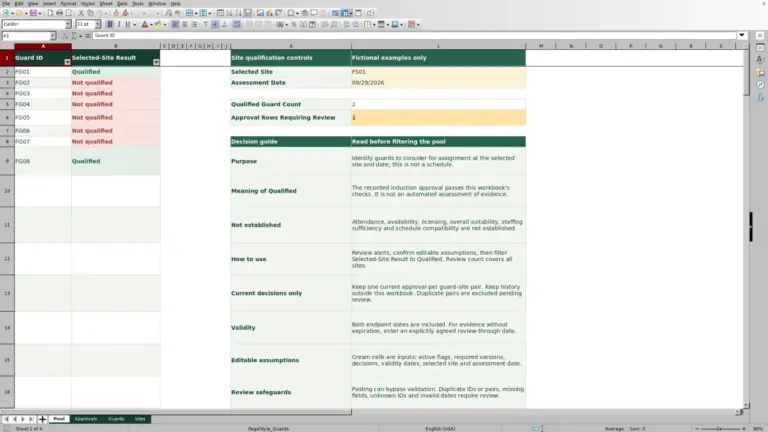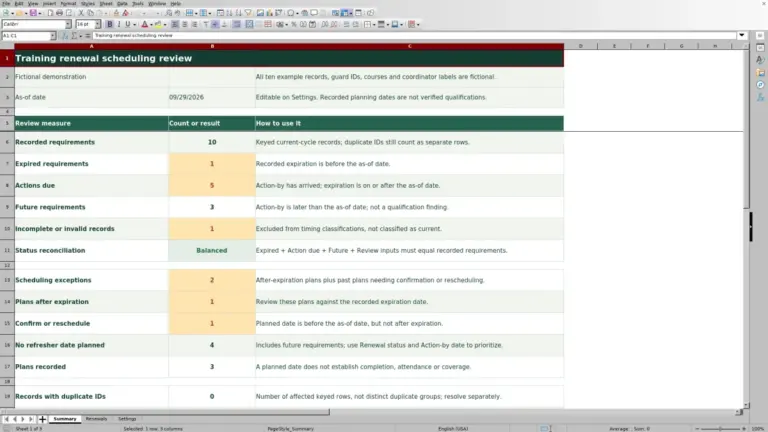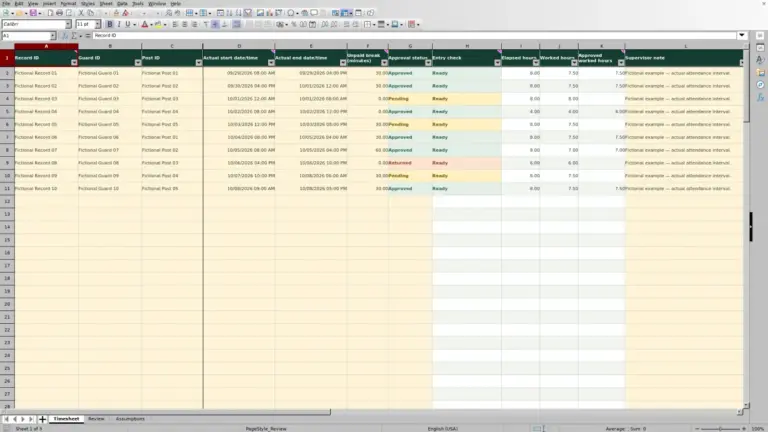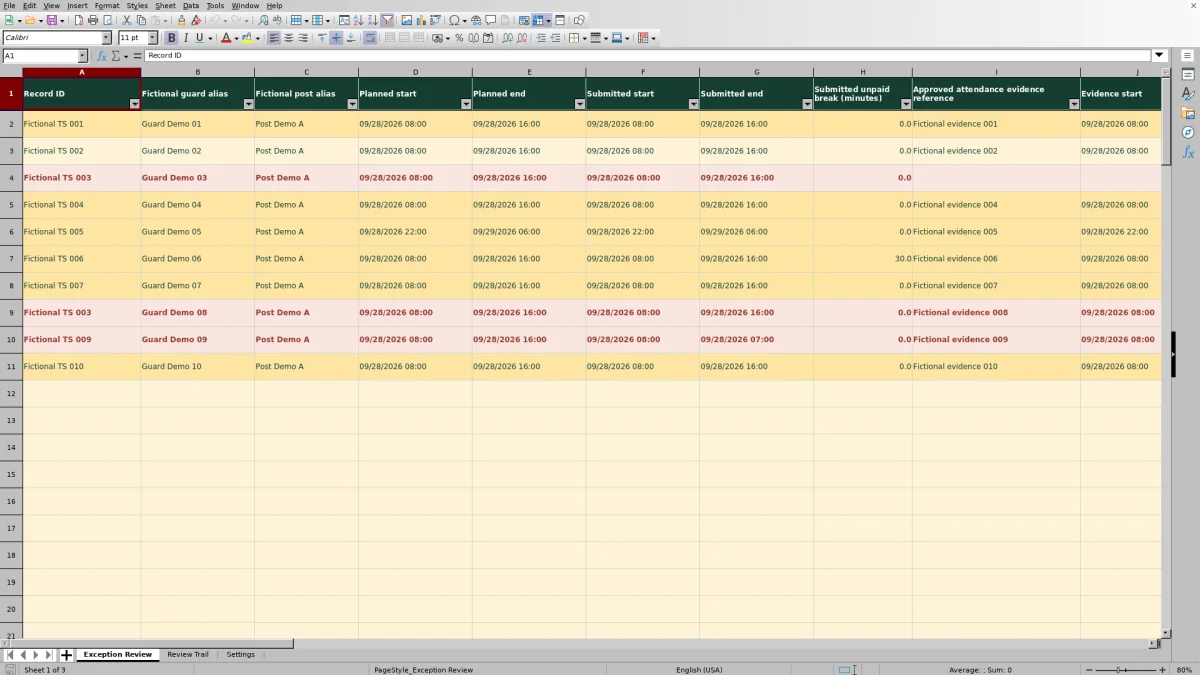
Before passing disputed guard hours to payroll staff, separate the submitted times from the attendance evidence and the final decision. The Guard Sheets Security Guard Timesheet Exception Log gives you an Excel record for that review, with one line for each submitted guard timesheet line at a post and shift.
Enter the time records, reference the approved attendance evidence, and document corrections and approval decisions. The workbook calculates hour differences and conditionally displays approved paid hours. You perform the review; the file does not establish attendance or execute payroll. All populated examples are fictional.
Where this workbook helps
- Keep submitted time and evidence-supported time separate so a correction does not erase the original comparison.
- See the hour difference before deciding whether a timesheet line needs a documented correction.
- Keep unresolved entries out of the approved-hours output until the workbook's release conditions are met.
- Give the next reviewer a linked record of the current decision and manually recorded review events.
What is in the file
How to get started
1. Confirm the review assumptions
Open Settings and check Discrepancy tolerance (hours), Maximum shift duration (hours), and Declared local time zone. The supplied values are fictional operational assumptions, not pay rules or legal defaults. Review the fictional examples before preparing your working copy.
2. Enter the submitted line and evidence
In Exception Review, use the cream editable cells. Assign a unique Record ID, enter the planned and submitted start and end dates and times, and supply Submitted unpaid break (minutes). Add the Approved attendance evidence reference, Evidence start, Evidence end, and Evidence unpaid break (minutes). Use full dates for overnight shifts and enter numeric zero when there was no unpaid break.
3. Resolve the difference
Compare Submitted paid hours with Evidence-supported paid hours and read Review check. Where a correction is needed, enter Corrected paid hours and Correction reason rather than replacing the submitted times. Select the appropriate Review status and resolve invalid or incomplete entries before approval.
4. Record the decision and matching event
For a completed approval, enter Approved, Reviewer alias, and Decision timestamp in Exception Review. Manually append an Approved event in Review Trail using the same Record ID, proposed hours, reviewer, and exact decision timestamp. Check Approved paid hours before using any result downstream; an Approved status alone does not release hours.
Separate scheduled coverage from attendance and paid hours
A scheduled post assignment is not proof that the guard worked the entire shift. In Exception Review, Planned coverage (hours) is simply the elapsed time between Planned start and Planned end. It has no break deduction and does not establish actual attendance.
Submitted paid hours uses the submitted start and end times, less the submitted unpaid break minutes divided by 60. Evidence-supported paid hours applies the same calculation to the evidence times and evidence break minutes. Those are separate manual inputs, so check each against its source rather than copying one set into the other just to make the difference disappear.
Evidence references are not evidence verification. Use Approved attendance evidence reference to identify the source without placing source contents or sensitive details in the workbook. A manual patrol log alone is insufficient attendance evidence and cannot prove that a guard visited a post. Resolve the source question before treating the calculated hours as a reviewed result.
Fictional example: resolve a submitted-hours difference
The supplied Fictional TS 002 record shows Guard Demo 02 at Post Demo A on 09/28/2026. The planned and submitted shift runs from 08:00 to 16:00, with 0 submitted unpaid break minutes. The referenced fictional evidence runs from 08:00 to 15:00, also with 0 unpaid break minutes.
The calculations produce 8.00 planned coverage hours, 8.00 submitted paid hours, and 7.00 evidence-supported paid hours. Submitted minus evidence (hours) is therefore +1.00 hour. The positive sign means the submission exceeds the evidence-supported amount; it does not explain why the records differ.
The fictional reviewer enters 7 in Corrected paid hours and records the reason: accepting seven evidence-supported paid hours. Proposed paid hours becomes 7.00. The record is marked Approved by Fictional Reviewer A with a decision timestamp of 09/28/2026 18:15, and the supplied Review Trail contains a matching approval event.
With Review check at Ready and the matching event present, Approved paid hours displays 7.00. The next decision is whether to use that reviewed amount in your separate downstream process. The result is approved hours, not a payroll payment; no wage rate, overtime amount, or billing charge is calculated.
Decide when to enter a correction—and what zero means
Use Submitted minus evidence (hours) to see the direction and size of a discrepancy. A negative result means the submitted paid time is lower than the evidence-supported paid time. A zero difference means the two calculated amounts agree; it does not confirm that either source is accurate.
The fictional Discrepancy tolerance (hours) setting is 0.05 hours, equivalent to 3 minutes. A difference beyond the configured tolerance requires an explicit Corrected paid hours decision and a Correction reason. Choose the tolerance under your own review process; it is not an automatic rounding rule or permission to disregard time.
Blank and zero corrections have different meanings. When Corrected paid hours is blank, Proposed paid hours uses the evidence-supported amount. A numeric zero is an explicit correction to zero hours. Do not enter zero merely to clear an unfinished line.
A correction also cannot substitute for missing evidence-time calculations: Proposed paid hours remains blank when Evidence-supported paid hours is blank. Complete and assess the evidence inputs first. Record the reasoning for any adjustment so the next reviewer can understand the decision without guessing from the final number.
Match the approval trail before releasing hours
The approved-hours formula requires more than selecting Approved. The current line must have a Record ID, Review check must be Ready, and the reviewer and a numeric decision timestamp must be entered. Review Trail must also contain an Approved event matching the current Record ID, Proposed paid hours, Reviewer alias, and Decision timestamp.
Copy the exact decision timestamp. The displayed date and time format can hide seconds, so two timestamps that look identical may not match. In Review Trail, Event timestamp records when you entered the trail event; Decision timestamp identifies the decision being matched. They serve different purposes and do not need to be the same time.
When the current decision changes, append a new matching event with an explanation. Do not assume that editing Exception Review writes a history entry. Review Trail is manually maintained and remains editable, so it is not an immutable audit log.
At handover, filter the records that still need attention and check Unreleased count. That count is the number of populated Record ID cells minus the number of numeric Approved paid hours results. It includes more than disputed lines, so inspect the status and Review check before deciding what action is needed.
Troubleshooting blank hours and blocked approvals
- Paid hours are blank: Check that the start and end are numeric Excel date/time values, the end is later than the start, and unpaid break minutes are entered. A blank break cell is not treated as zero. Break minutes must be nonnegative and cannot exceed the elapsed interval.
- Review check reports invalid input: Inspect duplicate Record IDs, unsupported statuses, invalid dates, excessive durations, and correction values outside the configured limit. Also check Settings; invalid numeric assumptions or an empty declared time zone can block readiness. Fix the source input rather than overwriting a result formula.
- Status is Approved but Approved paid hours is blank: First check Review check, Reviewer alias, and Decision timestamp. Then compare the matching fields in Review Trail, including the exact hours and timestamp. A similar-looking event is not necessarily a match.
- A pasted entry appears to bypass a rule: Inspect it again. Entry validation is not tamper-proof, and pasted values can bypass entry checks. Read red alerts and Review check before releasing hours.
Red indicates invalid input. Amber can indicate an incomplete, disputed, awaiting-decision, or Approved-but-unreleased entry. Green marks numeric released hours only. Read the values as well as the colors: a numeric zero can be a released result, while a blank means there is no approved-hours output for that line.
Handle overnight dates, breaks, and clock changes
For an overnight shift, enter the actual next calendar date in each applicable end field. An end time after midnight on the same entered date would be earlier than the start and would not produce valid elapsed hours. Use MM/DD/YYYY with a consistent time convention for planned, submitted, evidence, and decision timestamps.
All timestamps are local wall-clock values under Declared local time zone. The supplied setting is US Eastern local time, identified as America/New_York. The workbook does not resolve daylight-saving transitions for you. Review shifts crossing a clock change manually before approval rather than assuming ordinary date subtraction gives the correct payable duration.
Unpaid breaks are entered per line; there is no automatic break deduction. Enter minutes in the two break fields, not decimal hours. Keep submitted and evidence breaks distinct if the records differ.
The maximum-duration setting limits elapsed shifts and corrected paid hours. If an otherwise valid record exceeds your configured limit, investigate the dates and your operational assumption instead of shortening the entry just to pass a check. Any change to that setting should reflect your review process, not a universal shift-length rule.
Compare this workbook with a blank spreadsheet
Choose the method based on whether you need a repeatable exception review or a custom record layout. Both approaches still depend on someone assessing the attendance evidence and entering the decision.
| Method | Hours comparison | Approval control | Decision history | Downstream use |
|---|---|---|---|---|
| Guard Sheets exception log | Prepared calculations separate submitted, evidence-supported, proposed, and approved hours. | Approved-hours output requires readiness and a matching approval event. | Manual, editable Review Trail linked by Record ID and decision details. | Reviewed hours for manual use; no payroll or billing execution. |
| Blank spreadsheet | You design the columns and calculate or enter the differences. | You must create any checks or rely on a separate review procedure. | You must design and maintain a history record if needed. | You define how reviewed results are passed to the next process. |
Use this workbook when its one-line-per-submission structure and prepared review checks fit your process. A blank spreadsheet may fit an unusual record structure, provided you are prepared to build and check the calculations and approval controls yourself. Neither approach independently verifies attendance or supplies an uneditable decision history.
Frequently asked questions
How many timesheet lines and review events can I use?
The prepared Exception Review range has 100 data rows, and Review Trail has 200 event rows. Do not assume that typing below those ranges extends formulas, validation, filters, summaries, or approval matching. If you need more capacity, check and extend all affected ranges or use a separately controlled workbook for another review batch.
Does Rejected automatically mean zero approved hours?
No. Approved paid hours requires an Approved status and the other release conditions. A Rejected line returns no approved-hours output; it is not the same as a numeric zero-hour approval. Keep the rejection explanation in the manual review record so downstream staff do not interpret a blank as a payable amount.
Can I calculate overtime, pay, or client billing here?
No. The workbook does not calculate overtime, USD pay amounts, billable hours, margin, or markup. Use its approved paid hours only as a reviewed input to your separate process, where the applicable pay and billing rules are assessed.
Should I paste attendance reports or incident details into the file?
No. Use Approved attendance evidence reference to identify the source and keep the source contents in your approved record location. Avoid adding site addresses, access codes, or sensitive incident details. The supplied records and alias fields are fictional examples, not real personnel or post records.
Does the workbook send disputes to guards or obtain approval?
No. You enter the statuses, review decisions, and trail events manually. The workbook calculates and checks the entered records; it does not contact guards, obtain approval from a reviewer, or dispatch relief. Handle any required follow-up through your company's existing process.
Editorial coverage

Naomi WestbrookScheduling & contract records

Adrian MercerPatrol & operational records