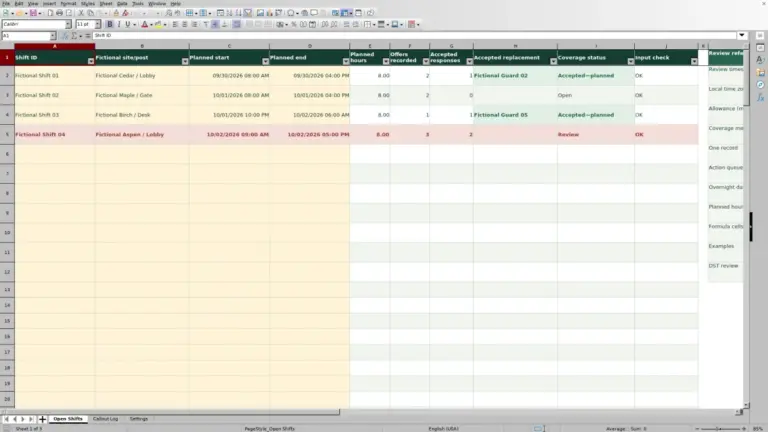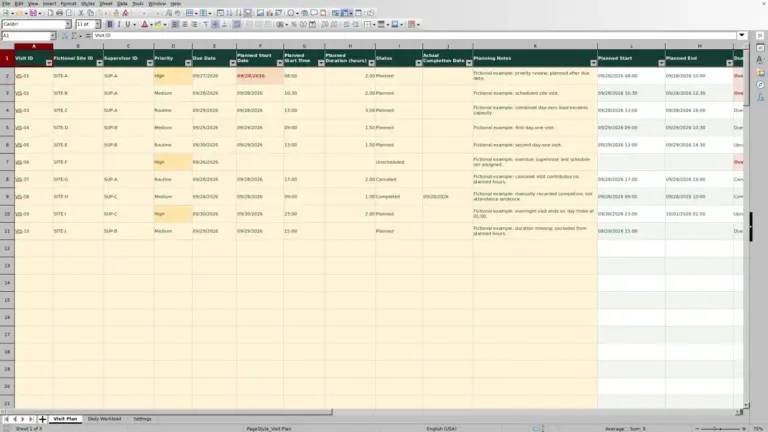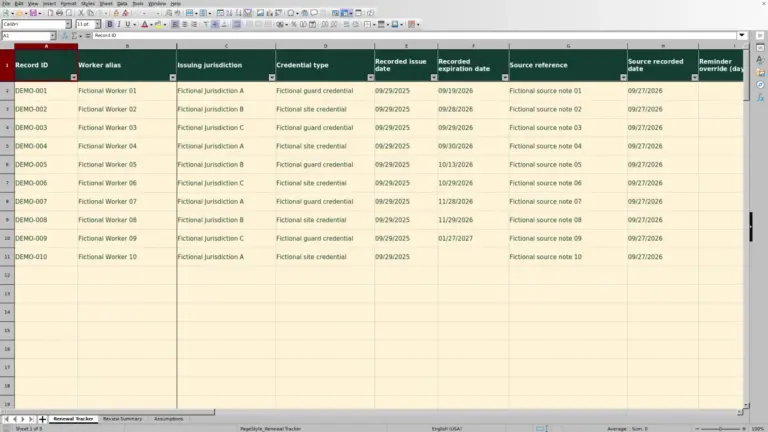
At shift handover, record when each guard actually started and finished at a post—not just what the roster planned. The Guard Sheets security guard timesheet calculates worked hours from entered date/times and unpaid break minutes, then separates approved hours for review.
This Excel workbook is a manual attendance record, not proof that a guard was on site. It starts with fictional examples and supports entry checks and approval status review; it does not calculate coverage, pay, or billing.
Where this workbook helps
- Keep actual attendance tied to a guard, post, and unique record ID.
- See worked hours after the unpaid break minutes you enter are deducted.
- Separate ready entries awaiting approval from approved and returned records.
- Identify excluded entries before relying on the review totals.
What is in the file
How to get started
1. Prepare the lists and working copy
Save a working copy before replacing the fictional examples. On Assumptions, enter your guard and post IDs in the existing list ranges. Confirm Stated local time zone and Maximum elapsed hours for review. Keep the supplied Pending, Approved, and Returned labels so the review formulas continue to match them.
2. Enter one actual attendance interval
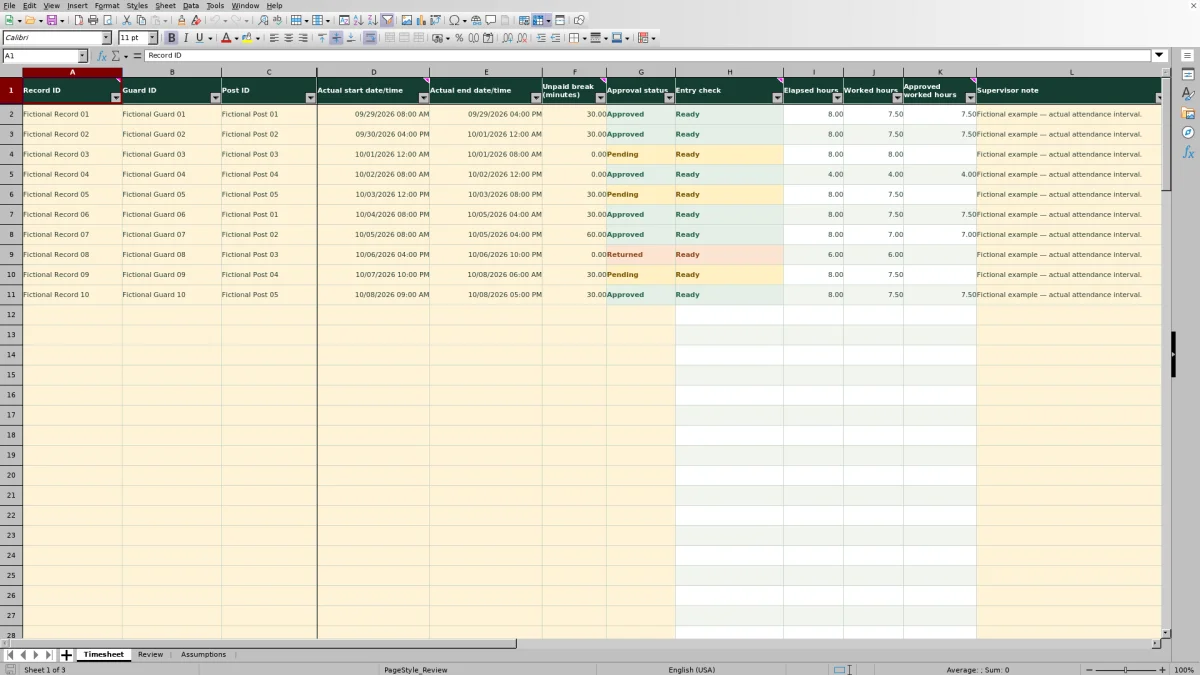
On Timesheet, fill in Record ID, Guard ID, Post ID, Actual start date/time, Actual end date/time, Unpaid break (minutes), and Approval status. Use a unique Record ID and enter an explicit zero when there was no unpaid break. Supervisor note is available for a brief clarification.
3. Resolve the entry check
Read Entry check before using the calculated hours. Correct missing fields, unrecognized selections, duplicate IDs, and date/time or break problems. Preserve columns H:K: they contain the checks and calculations, not attendance inputs.
4. Review and record the approval decision
On Review, check Excluded entries and the approval status counts. Reconcile the source attendance information before changing a record to Approved. Use Complete-record worked hours for all Ready entries and Approved worked hours for the Ready entries marked Approved; neither total is automatically a payroll or invoice amount.
Record actual intervals, including post transfers
Use the timesheet after you have the actual attendance information. A planned shift does not establish when the guard arrived, left, or took an unpaid break. Keep the planned roster separate so a scheduled interval is not mistaken for completed work.
Each Timesheet row represents one guard's attendance interval at one post. When a guard transfers between posts, split the attendance into separate, nonoverlapping records with different Record ID values. Assign unpaid break minutes to the relevant interval rather than deducting the same break from both records.
No overlap or conflict detection is calculated. Before approval, compare the intervals yourself, especially when a guard has several records on the same date. This workbook also does not determine whether relief arrived or whether a post remained covered.
Fictional example: calculate an overnight shift
The supplied Fictional Record 02 assigns Fictional Guard 02 to Fictional Post 02. Its Actual start date/time is 09/30/2026 04:00 PM, and its Actual end date/time is 10/01/2026 12:00 AM. It records 30 unpaid break minutes and an Approved status. These are fictional inputs, interpreted in the workbook's stated local time zone, America/New_York.
For a Ready entry, the workbook subtracts the start date/time from the end date/time and multiplies the Excel day difference by 24. That produces 8.00 elapsed hours. It then converts the break to hours and subtracts it: 8.00 − 30/60 = 7.50 worked hours. Because the entry is both Ready and Approved, Approved worked hours also shows 7.50.
The result represents the entered attendance interval less the entered unpaid break. Before accepting it, confirm the next-day end date and the break against your attendance source. Midnight belongs to the new date; entering it on the start date would not describe this overnight interval correctly. The result is not a wage or client charge.
Separate entry readiness from approval
Ready is not approval. Entry check reports whether an entry passed the workbook's checks. Approval status records a separate decision entered by the user. Setting a faulty row to Approved does not override its entry error or put its hours into the approved total.
On Review, Complete-record worked hours includes every Ready entry, including Pending and Returned records. Approved worked hours includes only entries that are both Ready and Approved. A Returned record can therefore remain in the complete-record total while contributing nothing to the approved total. Use the status counts to understand that difference rather than treating it as a calculation failure.
Check Excluded entries before passing either total onward. If entries are excluded, the workbook warns that totals are incomplete. A blank total means there are no qualifying entries, not that no guard worked. A qualifying zero-hour result is displayed as 0.00, which is different from a blank.
Troubleshoot missing hours and entry errors
If hours are blank, start with Entry check rather than typing a replacement result into the calculated columns. The hours formulas depend on a Ready result.
- Incomplete: Fill every required input from Record ID through Approval status. A blank break field is not the same as zero unpaid break minutes. A note by itself also does not make a complete attendance record.
- Unknown selection: Compare Guard ID and Post ID with the lists on Assumptions, and use the supplied approval choices. Pasted text can fail the checks even when it looks similar to a listed value.
- Duplicate ID: Find the repeated Record ID and check whether it is a copied attendance record or a separate interval needing its own ID. Do not simply rename an accidental duplicate and count it twice.
- Date/time or duration problem: Enter actual Excel date/time values, confirm that the end is later than the start, and check the break minutes and review threshold. Reconcile the source information before changing an input just to make the row pass.
Once the row is Ready, blank Approved worked hours may still be correct: Pending and Returned entries do not qualify for that column. Also inspect calculated cells after a paste or deletion, because those actions can bypass validation or remove formulas.
Handle clock changes and unusually long intervals
Use one stated local time zone consistently for the attendance you enter. Assumptions includes Stated local time zone as an editable label, but changing that label does not convert existing timestamps. If source records use different zones, reconcile them before entering the interval.
Ordinary overnight attendance requires the actual next-day end date. Daylight-saving clock changes need additional care: the workbook uses Excel date/time subtraction, which does not resolve a repeated or skipped local hour. Manually reconcile an interval crossing a clock change before approval; do not assume the displayed duration accounts for it.
Maximum elapsed hours for review is initially 16 hours in Assumptions cell F2. It is an operational review threshold, not a legal limit. Longer entries are excluded until reconciled. Check for a wrong date or a legitimately long interval, then apply your company's chosen review assumption. Raising the threshold merely to remove an exclusion does not verify the attendance.
Preserve formulas and control working copies
The prepared calculation area runs from rows 2–101 on Timesheet. The Review formulas use those same rows, so an entry placed below row 101 is outside the supplied summary ranges. For another batch, use a separate copy, or have the formulas and validation ranges deliberately extended and checked before relying on added rows.
Cream cells identify editable areas. Columns H:K have typing validation that discourages changes, but the formulas are not worksheet-protected. When clearing fictional examples, clear only their input cells and leave the calculated cells in place. If you overwrite a formula, restore it from an intact copy and verify the row references and resulting review totals.
Guard choices come from Assumptions A2:A11, and post choices come from B2:B6. Adding an ID outside those ranges does not automatically extend the dropdowns or membership checks. If your list is larger, those references need coordinated changes.
Before revising records already shared for approval, save a dated copy and agree on which copy is current. Use Supervisor note for a short correction explanation when useful; do not treat a note or saved file as an automatic approval history.
Compare with a paper timesheet
Choose the method around how attendance reaches the supervisor and how the hours will be checked. This workbook provides a prepared calculation and review structure, while a paper timesheet may suit a post where entries are collected by hand.
| Method | Attendance entry | Hours calculation | Approval review | Main limitation |
|---|---|---|---|---|
| Guard Sheets Excel timesheet | Manual guard and post records with full start/end date/times and unpaid break minutes. | Calculates elapsed and worked hours for Ready entries. | Separates Ready status counts, excluded entries, and approved worked hours. | Requires accurate source entries and preserved formulas; does not prove attendance or detect overlaps. |
| Paper timesheet | Handwritten attendance details on a form you design or select. | Requires separate arithmetic or later spreadsheet entry. | Requires a manual method for marking approval and assembling totals. | Missing information and totals must be checked manually; later entry adds a transcription step. |
Use this workbook when you want a consistent Excel review of manually supplied attendance. If paper collection is necessary at the post, it can remain your source record, with the workbook used for later calculation. In either workflow, reconcile the source information before approving the hours; neither method alone establishes physical presence.
Frequently asked questions
Can I use approved worked hours directly for payroll or billing?
Not without a separate review under your company's pay and client billing arrangements. The workbook does not calculate rates, overtime, pay, billing, or legal allowances. Approved worked hours are attendance hours that meet the entry checks and have an Approved status, not automatically paid or billable hours.
Can I review records for just one guard or post?
Timesheet has filters across its record area, so you can narrow the visible rows by Guard ID or Post ID. The Review totals use the full prepared ranges, however; filtering Timesheet does not turn those totals into guard-specific or post-specific totals.
Are the supplied records real attendance data?
No. All 10 populated attendance examples and the supplied guard, post, and record IDs are fictional. Replace or clear the example inputs before using a copy for operations, while preserving the formulas in columns H:K.
Can I rename Pending, Approved, and Returned?
The approval choices are editable, but the supplied review formulas and colors depend on those labels. Keep them unless you also update and check the affected logic. Changing a dropdown label alone can stop the workbook from classifying the record as intended.
Does the workbook clock guards in or track their location?
No. A user enters the actual date/times and break minutes manually. The workbook provides no live tracking and does not verify a guard's presence at a post. Use your attendance sources to resolve discrepancies before approval.
Editorial coverage

Naomi WestbrookScheduling & contract records

Adrian MercerPatrol & operational records