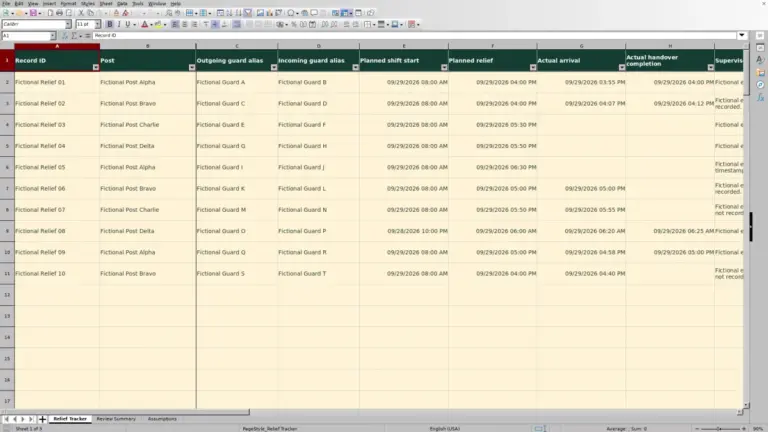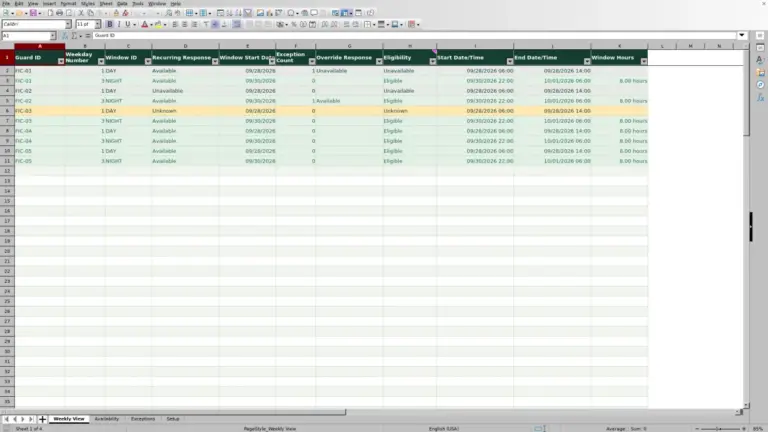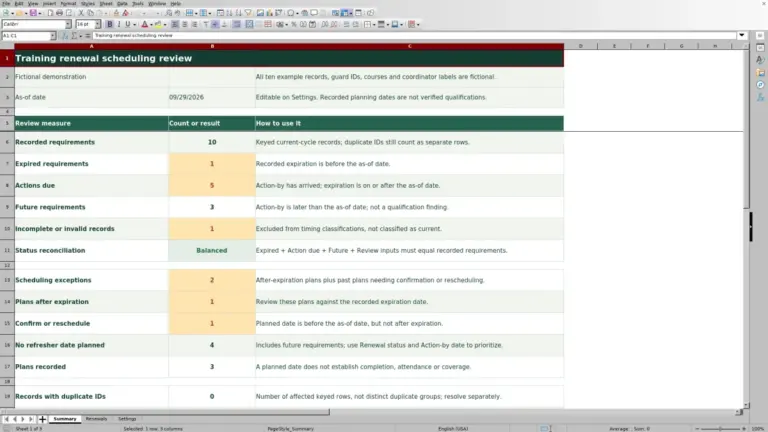
Before sending a guard on break, check how the planned relief sequence affects each post. The Guard Sheets security guard break relief planner is an Excel workbook for entering break windows, assigning relief, and reviewing planned staffing during each break.
You choose the sequence manually. The workbook checks entered overlaps and relief availability, then labels eligible records as Covered, Below requirement, or Unattended. It shows planned coverage only, not actual attendance or confirmation that relief reached the post.
Where this workbook helps
- Review the effect of one guard leaving a post before sharing the break plan.
- Find overlapping assignments that prevent a relief guard from counting toward planned coverage.
- Separate incomplete records from calculated coverage results so missing inputs are not mistaken for a finished plan.
- Use unattended post-minutes to assess zero-staff break windows across entered posts.
What is in the file
How to get started
1. Prepare the relief roster
Replace the fictional example inputs with your planning records. On Relief Roster, enter Available From, then Available Until, then a unique Relief ID. Use one continuous availability window per ID, and correct roster warnings before relying on the break plan.
2. Enter each planned break
On Break Plan, use rows 2–101. Enter Post ID, Shift Start, Shift End, Planned Staff Before Break (guards), Required Staff (guards), Break Start, and Break Length (minutes). Each row represents one guard leaving one post for a break.
3. Assign relief and preserve the calculations
Select Relief ID from the roster list, or leave it blank when no relief is assigned. Columns A:G and I are inputs; H and J:R contain calculations. Enter full local dates and 24-hour times, including the next day's date for overnight work.
4. Resolve exceptions before sharing
Review roster warnings first. Then filter Record Check, Coverage Status, Relief Conflict Count, and Usable Relief (guards) to find records needing attention. Adjust the entered sequence or assignment, check the results again, and communicate the agreed plan through your normal handover process. The workbook does not dispatch relief or notify guards.
Set the staffing baseline for each break
Use the staffing expected immediately before that break, not the total number of guards scheduled across the site. Enter that count in Planned Staff Before Break (guards), and enter the post's required count in Required Staff (guards).
The calculation assumes one guard leaves per record. Planned Staff During Break (guards) equals the entered baseline minus one departing guard, plus either one usable relief guard or zero. Coverage Status then compares that result with the entered requirement.
A zero-staff result is Unattended. A positive count below the requirement is Below requirement; a count meeting or exceeding it is Covered. Staffing requirements and break allowances are your planning inputs, not legal defaults supplied by the file.
The baseline must remain constant throughout the break window. If another staffing change occurs during that window, revise the plan before relying on the result. The workbook does not model multiple simultaneous departures at the same post as a combined staffing calculation.
Enter overnight windows with their actual dates
Enter Shift Start, Shift End, Break Start, and roster availability as full local date-and-time values in MM/DD/YYYY hh:mm format. A shift ending after midnight needs the following day's date. A time alone does not establish which day the break belongs to.
Break End adds Break Length (minutes) to Break Start. Excel stores time as a fraction of a day, so the formula converts the entered minutes by dividing by 1,440. Enter a duration in minutes, not as a clock time.
The checks require the shift to end after it starts, the break to start no earlier than the shift, and the break to finish within the shift. Relief must also be available for the entire calculated break window. Resolve the time basis manually before planning across a daylight-saving clock change; the workbook's local date-and-time arithmetic does not resolve that change for you.
Fictional example: separate two conflicting breaks
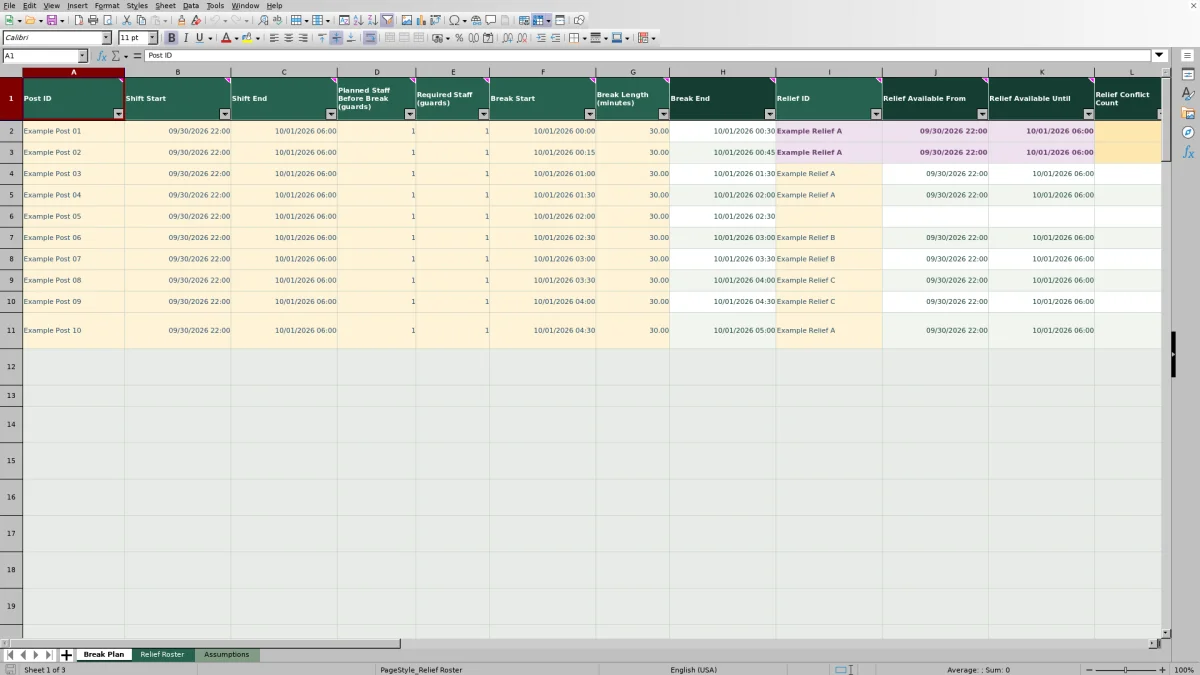
Consider an isolated planning session using these fictional workbook examples, with no other entered breaks. Example Post 01 and Example Post 02 each have one planned guard and require one guard. Both shifts run from 09/30/2026 22:00 to 10/01/2026 06:00. Example Relief A is available throughout that period.
Enter a 30-minute break for Example Post 01 starting at 10/01/2026 00:00, and another 30-minute break for Example Post 02 starting at 10/01/2026 00:15. Assign Example Relief A to both. The calculated break ends are 00:30 and 00:45, respectively.
Each row has a Relief Conflict Count of 1 because the windows overlap. Both records can be Ready, but Usable Relief (guards) is zero on each. The staffing calculation is 1 − 1 + 0 = 0 guards, so both rows are Unattended. Each contributes its full 30-minute break to Unattended Time (post-minutes), for 60 post-minutes across the two records.
This is a whole-break planning result, not a calculation of only the shared overlap. To revise the sequence, move the second break to 00:30. It then ends at 01:00. With no other conflicts, the touching endpoints do not overlap, relief counts as one on both rows, and both become Covered.
Before using that revised sequence, decide whether relief needs time to move between posts or complete a handover. The workbook does not add that time automatically.
Decide whether an assigned relief guard can count
A populated Relief ID does not by itself establish coverage. The roster lookup must return numeric availability dates covering the complete break, and Relief Conflict Count must be zero. Otherwise, relief contributes zero for the entire break.
Partial availability is not prorated. A relief guard whose window starts after the break begins or ends before the break finishes does not contribute partial coverage. Adjust the break or choose another available relief assignment, then review the recalculated status.
Relief conflicts and same-post overlaps have different effects. Overlapping use of a relief ID removes that relief contribution. Overlapping breaks with the same Post ID put the affected records into Review, so coverage is not calculated until you resolve them. Stagger those breaks rather than relying on separate rows to combine simultaneous departures.
Only entered break assignments are checked. Other duties outside those records are not detected, and back-to-back windows are allowed by the overlap formulas. Account for those operational constraints when choosing the sequence.
Troubleshooting missing or misleading results
- Record Check shows Incomplete: Supply Post ID and all six numeric inputs from Shift Start through Break Length (minutes). Dates or numbers stored as text can leave a record incomplete. Relief ID may remain blank.
- Record Check shows Review: Check for a reversed shift window, a break outside the shift, a nonpositive break length, staffing counts below one, or a same-post overlap. Correct the cause rather than typing over the result.
- Relief availability is blank or unexpected: Check that Relief ID matches a complete, unique roster entry. A missing lookup returns blank availability, while duplicate IDs can make the first matching roster entry determine the result.
- Relief is assigned but contributes zero: Check full-window availability and Relief Conflict Count. Selecting a name does not override those checks.
- Results changed after pasting: Inspect both the inputs and roster warning colors. Pasting or deleting can bypass validation, and the calculation cells are not locked. Restore an overwritten formula from an intact workbook copy.
Blank calculated staffing on an unresolved record is not evidence of coverage. Correct the input problem and wait for a calculated status before using that row in the sequence.
Read the summary before handing over the plan
Ready does not mean covered. It means the record passed the workbook's record checks. A Ready row may still be Below requirement or Unattended, so review Coverage Status separately.
The Planning summary labels its Totals basis as Provisional while Incomplete or Review records remain. Those unresolved records are excluded from coverage totals. Resolved records means those record-check exceptions are cleared; it does not mean every post meets its staffing requirement or every roster entry is valid.
Unattended Time (post-minutes) counts whole Ready break windows with zero planned guards. Adding these values measures unattended time across posts, not elapsed site downtime. Simultaneous windows at different posts each contribute to the sum.
A zero unattended total can coexist with Below requirement records that still have some staff, or with unresolved records excluded from the total. Review those exceptions before handing over. Keep a dated copy of the agreed plan before revisions so the incoming shift lead can distinguish the earlier sequence from the changed one.
Compare with a paper break-relief plan
Choose the method according to how often you need to revise windows and check interactions across posts. Both approaches still depend on accurate manual inputs and a separate process for confirming what actually happened.
| Method | Break sequencing | Conflict checks | Coverage review | Operational confirmation |
|---|---|---|---|---|
| Guard Sheets Excel planner | You enter and revise the sequence within 100 prepared break rows. | Formulas check entered relief overlaps and same-post overlaps. | Calculates staffing status and whole-break unattended post-minutes for Ready records. | Does not confirm attendance, arrival, or completed breaks. |
| Paper break-relief plan | You write the sequence and mark revisions manually. | You compare break and availability windows yourself. | You calculate staffing effects and totals manually. | A written plan alone does not confirm attendance, arrival, or completed breaks. |
Use this workbook when repeated time-window checks and calculated staffing results support your planning task. A paper plan may be sufficient for a small, stable sequence you can check manually. Neither method should be treated as live dispatch or proof that a post remained staffed.
Frequently asked questions
Does changing the default break length update existing records?
No. Default break length (minutes) on Assumptions is guidance for new entries. Copy its value into Break Length (minutes) on Break Plan and edit as needed. Changing the default or example shift assumptions does not rewrite existing dated records.
Can one relief guard have multiple availability windows?
The roster supports one continuous window per unique Relief ID. The workbook guidance calls for separate planning sessions when multiple windows are needed. Do not duplicate the same ID to represent separate windows; the lookup uses the first matching entry.
Can I add more than 100 break records?
The verified formulas, checks, and filters cover rows 2–101. Adding rows below that range should not be assumed to extend the calculations or conflict checks. Stay within the prepared range unless the workbook is deliberately modified and tested.
Does the planner calculate payroll or client charges?
No. It does not calculate paid hours, billable hours, USD rates, margin, or markup. Use a separate payroll or billing workflow rather than treating break lengths or post-minutes as payable or billable time.
Can the workbook choose the best break sequence for me?
No. You choose the break times and relief assignments. The workbook calculates the effects of those entries; it does not optimize the sequence, check guard qualifications, or confirm that a planned break occurred.
Editorial coverage

Naomi WestbrookScheduling & contract records

Adrian MercerPatrol & operational records