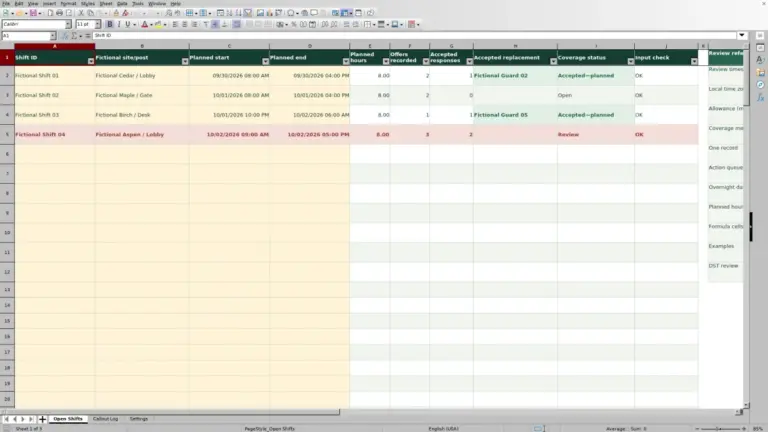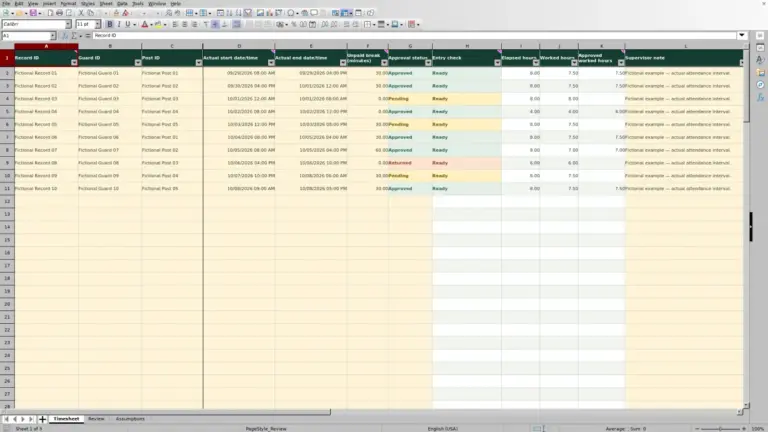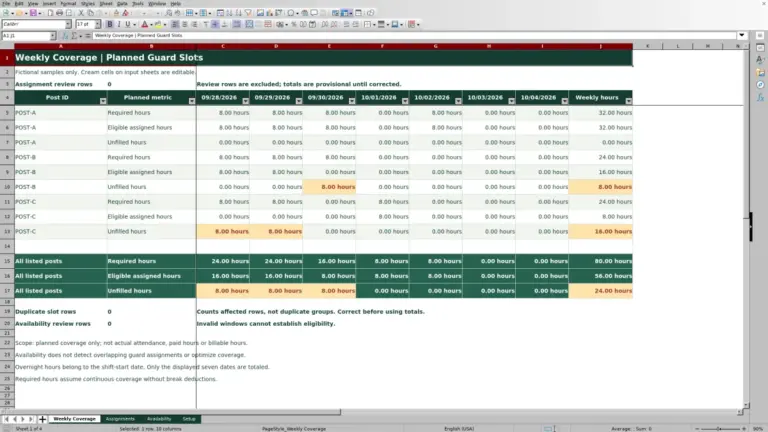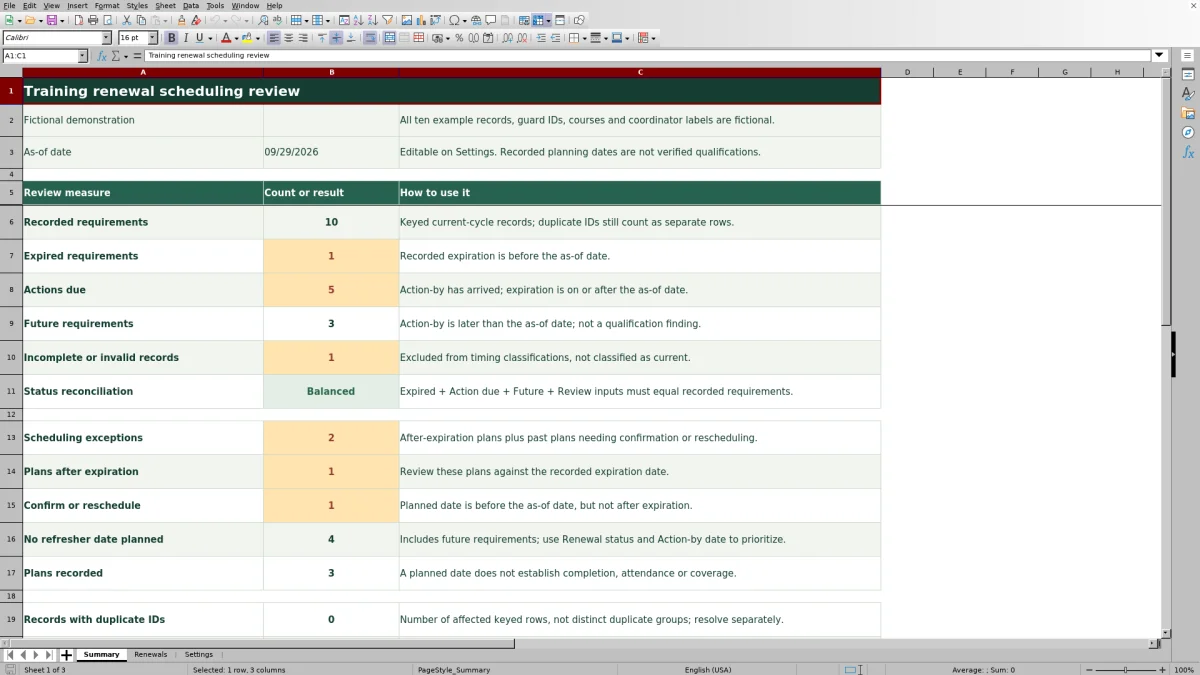
Before arranging refresher training, check which recorded requirements need attention and whether a training date is already planned. The Guard Sheets security guard training renewal calendar uses expiration dates and lead times to calculate action-by dates for your scheduling review.
This Excel workbook is a coordinator-maintained planning register, not a license tracker or proof of qualification. It includes ten fictional example records; replace or clear their inputs before operational use while preserving the formulas.
Where this workbook helps
- Prioritize refresher scheduling by calculated action-by date rather than reviewing expiration dates alone.
- Separate requirements needing scheduling from plans that need confirmation or rescheduling.
- Find incomplete records, duplicate Record IDs, and unkeyed input rows before relying on totals.
- Keep a coordinator label and nonsensitive planning notes beside each current-cycle requirement for handover.
What is in the file
How to get started
1. Set the review date and course assumptions
On Settings, check As-of date in B2. It starts with TODAY(), which advances when Excel recalculates; enter a fixed date if you need a dated review. Edit the five course names and their Default lead time (days) values in A6:B10. Use unique course names and whole-number lead times from 0 through 365 days. These are your planning assumptions, not mandated intervals.
2. Replace the demonstration inputs
On Renewals, clear or replace the fictional inputs in rows 2–11. Use one row for one guard and one training requirement's current expiration cycle. Enter a unique Record ID, a guard identifier in the field labeled Fictional guard ID, Training course, Training expiration date, and Coordinator label. Select the course from the dropdown.
3. Record exceptions and planned dates
Leave Lead-time override (days) blank to use the course default, or enter a whole-number override from 0 through 365 days. Enter a Planned refresher date when you have one and use Planning notes; no sensitive details for brief follow-up notes. Edit input cells only: formula cells are visually distinguished but are not locked.
4. Resolve data issues, then review the scheduling list
Check Summary for incomplete records, duplicate IDs, and unkeyed rows first. Then filter Renewals by Renewal status and review Action-by date alongside Scheduling action. When sorting, include the entire A1:M101 range so guard identifiers, dates, and notes stay together. Arrange training and communicate with guards through your normal process; the workbook does not do that for you.
Read timing status before choosing the next action
Use Renewal status to decide which recorded requirements need attention first. For valid records, the workbook assigns Expired when Training expiration date is before the as-of date. Otherwise, it assigns Action due when Action-by date is on or before the as-of date, and Future when the action-by date is later.
Expiration on the review date is not classified as Expired. Days until expiration will be zero, so check the date itself rather than interpreting that status as extra time. These labels describe entered dates; they do not establish whether a guard is qualified for a post.
Resolve Review inputs records before treating the remaining list as complete. They are excluded from the three timing classifications, not treated as current. After correcting them, review Expired and Action due records and use Scheduling action to determine the follow-up needed.
Choose lead times that match your planning needs
The lead time sets how many calendar days before expiration you want scheduling action to begin. The workbook subtracts Effective lead time (days) from Training expiration date to produce Action-by date. It does not calculate a training interval or decide when a course should expire.
A blank Lead-time override (days) uses the matching course's default from Settings. A valid override takes precedence for that record. Zero is a valid lead time, not a missing value: it places the action-by date on the expiration date. Use zero only if that reflects your intended planning assumption.
Changing a course default affects records that rely on that default, so review their recalculated action-by dates before handing over the list. Keep course names unique. If you rename a course on Settings, check existing Training course entries and select the revised name where needed; the lookup requires a matching course.
Fictional example: a planned refresher can still be action due
For a fixed demonstration, set As-of date to 09/29/2026. The supplied fictional REC-004 record uses GUARD-004, Site Orientation, a Training expiration date of 10/29/2026, and Demo Coordinator. Its lead-time override is blank, so it uses the fictional course default of 30 days. Its Planned refresher date is 10/19/2026.
Subtracting the 30-day lead time from the expiration date gives an Action-by date of 09/29/2026. Subtracting the review date from expiration gives 30 days until expiration. The resulting Renewal status is Action due because the action-by date has arrived. Scheduling action is Planned because the refresher date is not in the past and is not after expiration.
The two results answer different questions: the requirement has reached its scheduling window, and a date has been recorded. Your next decision is whether that plan is still appropriate and confirmed through your normal process. A planned date is not attendance or completion, and it does not resolve any post coverage needed while the guard attends training.
Separate missing plans from scheduling exceptions
Read Scheduling action alongside Renewal status rather than treating it as a second expiration status. A valid record without a Planned refresher date shows Schedule refresher. That includes Future requirements, so Summary's No refresher date planned count is not a count of urgent bookings alone.
- Plan after expiration means the planned date is later than the recorded expiration. Review that conflict before relying on the plan.
- Confirm or reschedule means the planned date is before the as-of date and is not after expiration. Check what happened outside the workbook before changing the record.
- Planned means a date is recorded that does not meet either exception rule. It does not confirm a booking.
- Resolve missing inputs directs you back to a record with Review inputs status.
The after-expiration check takes priority over the past-date check. A plan that is both in the past and later than expiration therefore appears as Plan after expiration. Summary's Scheduling exceptions total covers the two exception labels, not missing plans or incomplete records.
Troubleshooting blanks, invalid entries, and misleading totals
If a date or status is blank, do not assume no action is needed. Start with Record ID: a row without it is excluded from recorded requirements and status counts, even if other inputs are present. Summary's Unkeyed input rows count helps you find this problem. Add the intended unique ID or clear an unintended input row.
- Review inputs: check the guard identifier, course, expiration date, coordinator label, and usable lead time. Also check the as-of date and any planned date. Enter actual Excel dates without a time component, not text that merely looks like a date.
- Blank Effective lead time (days) or Action-by date: check the override and course default. Lead times must be whole numbers from 0 through 365; course names must match exactly one Settings entry. Clear an invalid override if the course default should apply.
- Duplicate Record IDs: inspect the affected rows and give separate requirements separate IDs. The duplicate count reports affected rows, not the number of duplicate groups. Duplicate IDs still contribute separate rows to Recorded requirements.
- Unexpected results after editing: check whether a formula was overwritten. Use an intact copy to restore the corresponding formula rather than typing a status label into the result cell.
Status reconciliation should show Balanced when the four status counts equal Recorded requirements. Balanced does not certify that the inputs are accurate or IDs are unique. Likewise, zero Actions due is not an all-clear if incomplete or unkeyed records remain.
Maintain the current cycle and a clear handover
Use Coordinator label and brief planning notes to show who should follow up and what remains unresolved. Before a handover, confirm the as-of date so the next coordinator knows whether the review is based on today's recalculated date or a fixed snapshot. If you need to retain that snapshot, save a dated copy before changing the inputs.
After renewal is confirmed from your source record, manually update the current-cycle expiration date. Review the old planned date and notes at the same time so they do not continue to describe the previous cycle. This is a current-cycle planning register, not a completion history; keep supporting training records separately.
The supplied review range is 100 records, in Renewals rows 2–101. Summary formulas and the filter refer to that fixed range. Entries below it are not included in the supplied summary calculations. Do not assume adding rows extends the workbook; extending capacity requires checking formulas, validation, filters, and summary ranges together.
Compare with a manually maintained training list
A blank spreadsheet can work for a small training list if someone consistently calculates deadlines and reviews every record. This workbook provides a defined review structure, but both approaches still depend on maintained source data and someone arranging the refresher.
| Method | Deadline review | Scheduling follow-up | Record checks | Maintenance and limits |
|---|---|---|---|---|
| Guard Sheets renewal workbook | Calculates action-by dates and timing status from expiration, lead time, and the as-of date. | Labels missing plans, after-expiration plans, and past plans needing confirmation or rescheduling. | Counts incomplete records, affected duplicate-ID rows, and unkeyed input rows; reconciles status totals. | Provides 100 current-cycle rows and five course options. Inputs, training arrangements, and renewal updates remain manual. |
| Blank spreadsheet maintained manually | The coordinator calculates deadlines or builds and checks formulas. | The coordinator reviews dates and writes follow-up notes or labels. | The coordinator checks omissions and duplicates unless equivalent checks are built. | Layout and review rules must be designed and maintained. Source verification and training arrangements remain manual. |
Choose this workbook when its course list, current-cycle structure, and supplied capacity fit your review process. A custom list may suit a different record structure, provided you establish a dependable checking routine. Neither approach should be treated as evidence of qualification or as an automatic training booking service.
Frequently asked questions
Is this a monthly calendar view?
No. It is a date-based renewal register with filters and a summary, not a month-grid calendar. Use Action-by date and Renewal status on Renewals to build your review list.
Can I use it to verify guard licenses?
No. Its dates and statuses concern recorded training requirements. It does not check licenses, legal requirements, or whether a guard is eligible for an assignment. Keep license verification separate from this refresher planning task.
Does it send reminders when training is due?
No reminder delivery or calendar integration is provided. TODAY() can move the review date when Excel recalculates, but that is not background monitoring. You need to open and review the workbook and communicate follow-up actions yourself.
Does Recorded requirements show the number of guards?
No. It counts rows with nonblank Record IDs. One guard with several training requirements can occupy several rows, and duplicate Record IDs still count as separate rows. Use the total as a requirement-record count, not a headcount.
Editorial coverage

Naomi WestbrookScheduling & contract records

Adrian MercerPatrol & operational records