When a training session ends, separate documented attendance from records that still need follow-up. The Guard Sheets security guard training attendance register is an Excel workbook for recording enrollments, actual attendance times, and evidence references.
Use it to review completed, missed, and incomplete enrollments without treating a planned session as proof of attendance. Its results support training recordkeeping, not payroll or certification verification. All included example records and related sample information are fictional.
Where this workbook helps
- Keep each guard’s enrollment tied to a specific training session for clearer follow-up.
- Separate documented missed attendance from missing evidence and unrecorded outcomes.
- Compare actual training minutes with a company-selected attendance threshold.
- Use outcome counts and register filters to prepare a focused training handover.
What is in the file
How to get started
1. Set the review assumptions
Open the workbook in Excel or LibreOffice so formulas calculate. Save a working copy, then use Setup to update Review timestamp and Company-selected local time zone. Review the daylight-saving transition settings for your year and time zone, and replace the fictional guard IDs in the existing list as needed.
2. Enter the training sessions
In Sessions, enter a unique Session ID, Course, Planned start, Planned end, Required attended minutes, and an appropriate Location label. Use full dates and times. Check Data check before relying on the session in Register; the attendance threshold is your company’s assumption, not a built-in legal standard.
3. Record each enrollment and its evidence
In Register, use one row per guard and session. Enter a unique Enrollment ID, select the Guard ID and Session ID, and choose Unrecorded, Attended, or Missed under Attendance status. For attended records, enter Actual arrival, Actual departure, and Excluded minutes, including 0 when none are excluded. Add the relevant Evidence reference without copying sensitive document contents into the workbook.
4. Resolve records before sharing totals
Filter Register by Data check or Outcome to find records needing attention. Correct entry problems and obtain missing attendance information before reviewing Summary. Edit the cream input cells rather than the calculated columns, and remove fictional inputs from your working copy without deleting formulas.
Keep enrollment totals separate from guard headcounts
Use the register to answer which guard-session records are complete, not how many individual guards are qualified for a post. A guard attending several sessions needs a separate enrollment for each one. Several guards attending the same session share that Session ID but have different Enrollment IDs.
Summary counts enrollments, not unique guards. A completed enrollment does not establish completion of an entire course program, and total enrollments does not represent the number of employees trained. Keep this distinction in the label or explanation you use when sharing results with an operations manager.
Create a new Session ID for a separate session rather than reusing an old ID for a later date. Register checks for duplicate Enrollment IDs and duplicate guard-and-session combinations, helping you identify records that need correction before using the totals.
Decide what each attendance outcome needs next
Read Outcome together with Data check. Completed is a minutes-based result: for a record whose Data check is Ready, an Attended entry needs calculated minutes and an Evidence reference, and those minutes must meet or exceed Required minutes. If the minutes fall short, the outcome is Incomplete. Decide what further training or record review is appropriate under your company’s process; the workbook does not make that decision.
- Missed requires the Missed attendance status and a nonblank Evidence reference on an otherwise ready record.
- Awaiting evidence covers ready Attended records without calculated minutes or an evidence reference, and ready Missed records without an evidence reference.
- Not recorded - past identifies an otherwise ready Unrecorded enrollment whose planned end is earlier than the static review timestamp.
- Planned applies to an otherwise ready Unrecorded enrollment whose planned end has not passed that timestamp.
- Review means the record has a Data check result other than Ready and needs correction or investigation.
Do not turn missing documentation into an absence by assumption. An Evidence reference is a manually entered label; the workbook does not inspect the referenced document or independently verify attendance.
Fictional example: interpret an incomplete enrollment
The included fictional T2 session, Fictional Report Writing Workshop, runs from 09/26/2026 01:00 PM to 02:00 PM and has Required attended minutes set to 60 minutes. Fictional Enrollment 003 records Fictional Guard 01 as Attended, with Actual arrival at 01:00 PM, Actual departure at 01:30 PM, Excluded minutes of 0, and the evidence label Fictional attendance sheet 003.
The calculation converts the elapsed time to minutes and subtracts excluded time: 30 elapsed minutes − 0 excluded minutes = 30 actual attended minutes. With Data check at Ready and the evidence reference present, the formula returns Incomplete because the result is below the session’s 60-minute threshold.
This means the enrollment does not meet the selected attendance threshold; it does not explain why the guard left or assess learning. Check the source attendance record first. If the entries are correct, decide whether to arrange further training under your company’s process. Do not change actual times merely to produce a Completed result.
Troubleshooting blank minutes and review flags
A blank calculated value is not necessarily zero attendance. In Register, Actual attended minutes remains blank when Data check is not Ready, Attendance status is not Attended, or the arrival, departure, and excluded-minute inputs are not all numeric. For an attended record with no excluded time, enter 0 in Excluded minutes instead of leaving it empty.
- Missing fields: check Enrollment ID, Guard ID, Session ID, and Attendance status. Complete the required identifiers before interpreting the outcome.
- Duplicate record: give each enrollment its own Enrollment ID. If a row was entered twice, remove the duplicate inputs rather than changing its ID to hide the duplicate.
- Duplicate enrollment: inspect repeated Guard ID and Session ID pairs. A separate training occurrence belongs under a separate session record.
- Blank planned details: check that Session ID matches an entry in Sessions and that the source session details are present. Do not type over the lookup formulas.
- Session marked Review: check for duplicate session IDs, missing numeric dates or thresholds, an end time that is not after the start, or required minutes exceeding planned minutes. Also inspect the configured transition windows.
Dates pasted as text can prevent minute calculations even when they look correct. Re-enter them as Excel date/time values. Keep the exact attendance labels Unrecorded, Attended, and Missed because the formulas depend on those English labels.
Handle overnight training and clock changes
For a session crossing midnight, enter the next calendar date with the end time. The included fictional Overnight Handoff Workshop starts at 09/28/2026 11:00 PM and ends at 09/29/2026 01:00 AM. Entering only clock times, or using the start date for both entries, would not describe the intended elapsed period correctly. Apply the same full-date practice to Actual arrival and Actual departure.
All entries use the single Company-selected local time zone in Setup. There is no conversion to Coordinated Universal Time or between local time zones. Agree on the entry convention before combining attendance records from different locations.
Clock-change overlaps require manual review. Sessions overlapping either configured daylight-saving review window return Review. The supplied transition assumptions cover the creation year only; update Spring transition review start, Fall transition review start, and Transition review window, minutes when changing the year or local time zone. These settings flag affected sessions rather than resolving ambiguous elapsed times for you.
Prepare a training handover with a clear review cutoff
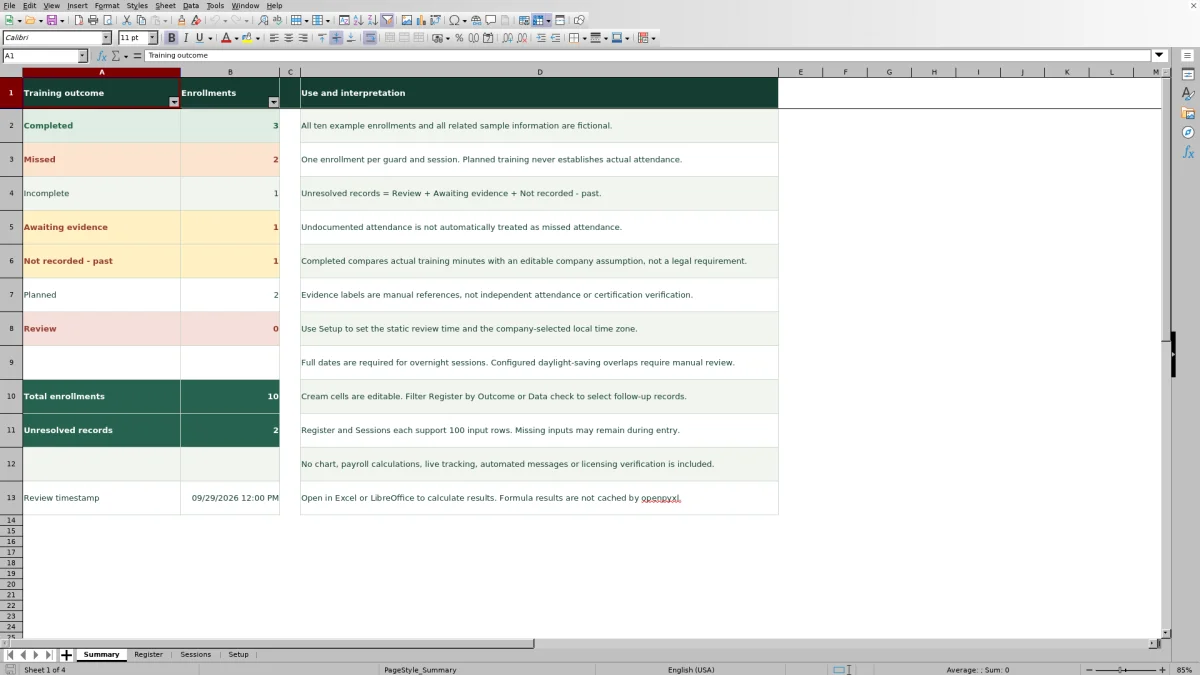
Update Review timestamp in Setup before reviewing past sessions. It is a static value, not a live clock. If you leave an old timestamp in place, an unrecorded enrollment may remain Planned even though its session has since ended. Summary displays the timestamp so you can state the cutoff used for the review.
Summary’s Unresolved records total combines Review, Awaiting evidence, and Not recorded - past. It does not include Missed or Incomplete, even though those outcomes may also require action. For a useful handover, review those two outcomes separately rather than treating the unresolved total as the entire follow-up workload.
Save a dated copy before changing past session times or required minutes. Those session fields feed the enrollment calculations, so edits can change existing outcomes. Share the cutoff and outstanding questions with the next coordinator through your normal process; the workbook does not send messages or reminders.
Compare with a paper training attendance log
Choose the method based on whether you need to collect attendance at the session, review several sessions afterward, or do both. This workbook organizes entered records and calculates outcomes; a paper log remains a separate source record when that is how your company collects attendance.
| Method | Attendance entry | Minutes and outcomes | Follow-up review | Evidence handling |
|---|---|---|---|---|
| Guard Sheets Excel register | Manual entry of one guard-session enrollment per row, within prepared ranges. | Calculates attended minutes and outcomes from entered data and company-selected thresholds. | Provides filters, outcome counts, and an unresolved-record total. | Stores manual references; does not inspect or authenticate source documents. |
| Paper training attendance log | Handwritten attendance details using the fields provided on the form. | Requires a separate manual calculation and interpretation of minutes and outcomes. | Requires someone to sort, count, and list records needing follow-up. | Can serve as the source attendance record; its contents still need appropriate checking. |
Use the workbook when its prepared capacity and manual-entry workflow fit your training review. If paper collection suits the training room, retain that source record and enter a reference in the workbook afterward. Neither method alone establishes certification or qualification for an assignment.
Frequently asked questions
How many guards and sessions can I enter?
Sessions and Register each have 100 prepared input rows, from rows 2–101. Register capacity is 100 enrollments, not necessarily 100 guards. The current guard dropdown and guard-ID check use the five entries in Setup cells D2:D6. Replacing those entries is different from expanding the list: adding more guards requires updating both the validation source and the checking formulas. Do not assume entries beyond the prepared ranges are included in calculations or Summary.
Can I use the training minutes for payroll or client billing?
No. Actual attended minutes measures entered training time after Excluded minutes are deducted. The workbook contains no payroll calculations, and these minutes are neither paid hours nor billable hours. Use your separate payroll and billing processes for those decisions.
Are the formula cells protected from accidental edits?
No. Formula cells have locked cell metadata, but worksheet protection is not enabled. Cream cells identify editable inputs. Keep a clean copy of the workbook and avoid pasting across calculated columns when replacing the fictional examples.
Why might a preview show no calculated results?
The workbook needs to be opened in Excel or LibreOffice to calculate its formulas. Calculated results are not stored in the supplied file for every preview tool to display. Recalculate in a spreadsheet application before deciding that a blank preview means there are no enrollments or outcomes.
Does a Completed result verify a guard’s license or certification?
No. Completed reflects the workbook’s attendance-minute test with the required record inputs present. It does not verify a license, authenticate evidence, assess course knowledge, or establish eligibility to staff a post. Any qualification decision needs a separate process appropriate to your company’s requirements.
Editorial coverage

Naomi WestbrookScheduling & contract records

Adrian MercerPatrol & operational records