Before building a roster, estimate how many guards each contract needs for the planning week. The Guard Sheets security post staffing calculator uses required post hours, a relief allowance and usable hours per guard to calculate whole-guard headcount in Excel.
Enter one row per contract, resolve input warnings and review the weekly totals. This is a capacity estimate, not a named roster: it does not assign guards to shifts, detect scheduling conflicts or guarantee coverage.
Where this workbook helps
- Turn weekly post requirements into a whole-guard estimate for each contract.
- Account for an explicit relief reserve instead of leaving that assumption unstated.
- Keep incomplete or duplicated contract records from appearing in usable summary totals.
- See how much usable capacity comes from rounding each contract up to whole guards.
What is in the file
How to get started
1. Set the planning week and assumptions
In Assumptions, enter the common Monday date in Planning week start using MM/DD/YYYY. Review Suggested relief allowance and Suggested usable hours/guard/week. The supplied values are fictional starting assumptions, not staffing standards.
2. Replace the fictional sample inputs
In Staffing plan, replace or clear the sample entries in columns A–D. Preserve the formulas in columns E–I. Use a unique, non-sensitive identifier in Fictional contract label, and enter one row per contract after totaling its required posts and shifts.
3. Enter each contract’s capacity inputs
Complete Required post hours/week, Relief allowance (%) and Usable hours/guard/week. If you use the suggestions from Assumptions, copy them into columns C and D as values. Changing a suggestion does not update existing contract rows.
4. Clear warnings before reviewing totals
Check Input status for every started row and correct any warning. Then open Summary and confirm Plan readiness says Ready to review. Review the contract headcounts and rounding capacity before moving to a separate guard-assignment process.
Build the weekly post-hours requirement first
Start with the coverage the contract requires, not the hours currently assigned to named guards. Add the required hours across all posts and shifts for the same planning week, then enter that total in Required post hours/week. The workbook expects one row per contract, rather than separate rows for each guard or shift.
Keep the supporting shift detail outside this calculator so you can explain the weekly total. Required post hours describe planned coverage; they are not attendance, paid hours or billable hours. A numerically complete row cannot establish that your source requirements are correct.
For overnight work, calculate elapsed hours from dated starts and ends before entry. Use the actual next-day end date rather than accepting a negative duration. Apply a consistent planning-week boundary, and document any daylight-saving adjustment in your supporting calculation. This workbook accepts the resulting weekly hours; it does not calculate shift durations.
Choose relief and usable capacity without double counting
Use Relief allowance (%) to add a staffing reserve to the required post hours. The calculation is required hours × (1 + relief allowance). It is an additive reserve, not a calculation that divides demand by the percentage of staff expected to be available.
Usable hours/guard/week is the weekly capacity you expect one guard to contribute to the plan. Deduct your estimated non-post breaks and administrative time when setting that input. Do not deduct the same reserve from usable capacity if you already included it in the relief allowance; doing both can inflate the estimate for the same reason twice.
The workbook accepts relief from 0% through 100% and usable capacity greater than zero through 168 hours per guard per week. These are input limits, not recommended schedules or legal defaults. Choose values that fit your planning assumptions and review them separately for each contract.
Fictional example: interpret a contract’s headcount
The supplied fictional Example Contract 01 has 168 required post hours/week, a 10% relief allowance and 40 usable hours/guard/week. The workbook calculates staffing demand as 168 × 1.10 = 184.80 hours/week.
Dividing that demand by 40 gives 4.62 guard equivalents. Required whole guards rounds the result upward to 5 guards. Their assumed usable capacity is 200 hours/week, leaving 15.20 hours/week in Rounding capacity above demand (hours/week).
Interpret this as a five-guard capacity estimate for that contract under the entered assumptions. The rounding capacity is not proof that a particular relief shift can be filled. Next, check whether the proposed guards’ availability and the required shift pattern can form a workable roster in your separate scheduling process.
Read the total as dedicated contract headcount
Summary adds the already-rounded contract results in Summed contract headcount (guards). It assumes guards are dedicated to each contract. Do not substitute a calculation that combines all guard equivalents first and rounds only once; that would assume capacity could be pooled across contracts.
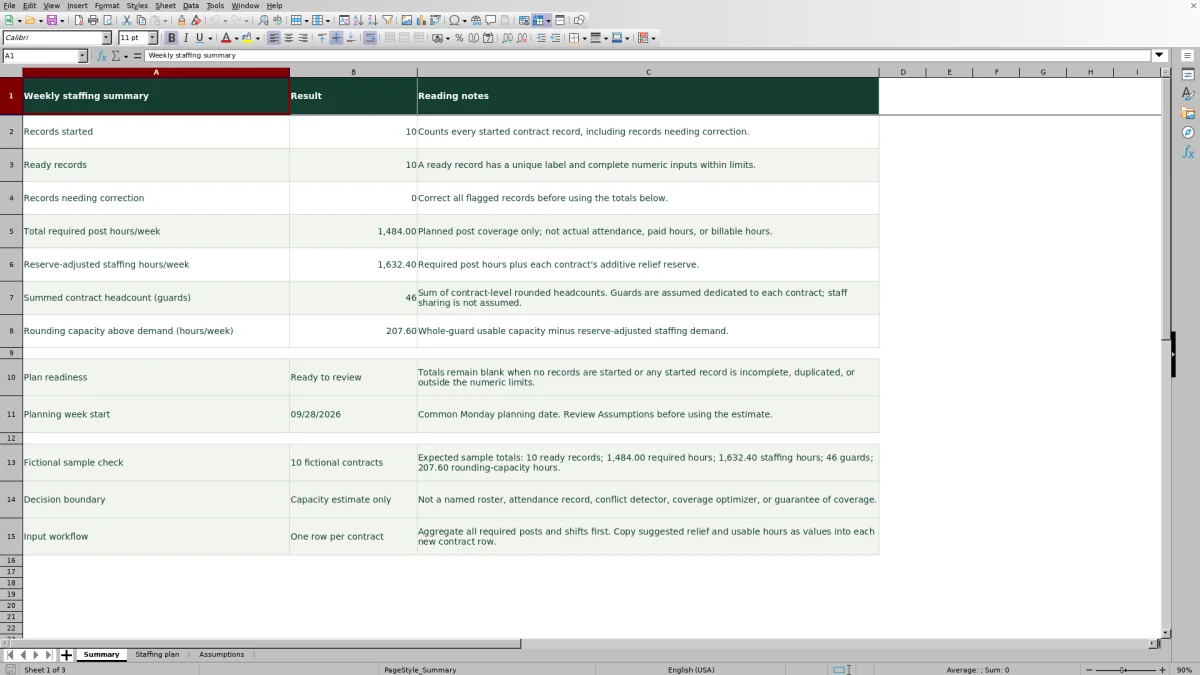
Use Total required post hours/week to review the planned coverage volume. Reserve-adjusted staffing hours/week adds each contract’s relief reserve. Rounding capacity above demand (hours/week) measures the remaining usable capacity created by whole-guard rounding, beyond that reserve-adjusted demand.
Rounding capacity is not confirmed spare coverage. It does not show when those hours are available or whether guards can move between contracts. If your operation shares guards, treat this summary as a dedicated-contract estimate and evaluate the shared assignments separately. The workbook does not optimize staff sharing.
Troubleshooting warnings, blank totals and zero demand
When Summary shows Correct inputs, use Input status in Staffing plan to find the affected rows. The checks identify input problems, not operational approval. A Ready result means the row has a unique label and complete numeric inputs within the formula’s limits.
- Missing contract or Duplicate contract: enter a unique contract label. If you entered several shifts from one contract as separate records, aggregate their hours into one contract row rather than merely renaming them.
- Complete numeric inputs: enter numbers in all three input fields. Replace entries such as “hours TBD” with a verified numeric assumption before using the plan.
- Check input limits: review negative required hours, relief outside 0%–100%, or usable hours at zero or above 168. Enter percentages with the percent sign or as their decimal equivalent; a whole-number entry can represent a much larger percentage than intended.
Summary totals remain blank if even one started record is not Ready. They also remain blank when there are no started records. For an unused row, clear all inputs in columns A–D rather than leaving part of a record behind.
Zero required post hours is valid and produces zero guards when the other inputs are complete and valid. That means the contract has no entered demand for the week—not that demand is unknown. Zero usable hours is invalid because the calculator cannot divide staffing demand by zero capacity.
Revise the plan without losing the planning context
When a client changes required hours, keep a dated copy of the current workbook before revising the contract row. Retain the source of the changed requirement with your planning records. Do not rely on this file to preserve earlier assumptions or assignments.
Update the Monday date in Assumptions for a new planning week. The date is displayed in Summary, but changing it does not replace the contract inputs. Recheck the weekly demand and each contract’s relief and usable-capacity values.
Edit the designated inputs in Staffing plan columns A–D and Assumptions B2–B4, not the calculated outputs. For a handover, share the week, assumption changes and unresolved source questions along with the estimate. Ready to review is an input-readiness status; it is not a record of manager approval.
Compare with a manually built staffing spreadsheet
A blank spreadsheet can support the same planning task if your team builds and checks the calculations. Choose between that approach and this workbook based on how closely the dedicated-contract model fits your operation.
| Method | Calculation setup | Input review | Planning scope | Change records |
|---|---|---|---|---|
| Guard Sheets staffing calculator | Prepared relief, guard-equivalent and whole-guard calculations. | Text status checks; summary totals withheld for flagged records. | Weekly contract estimates with dedicated headcount; no named assignments or staff-sharing optimization. | Keep dated copies and supporting notes outside the calculated fields. |
| Manually built spreadsheet | Your team creates and verifies the formulas and rounding method. | Your team defines checks or reviews entries manually. | Can be structured for your chosen model, but calculations and scheduling checks must be built separately. | Your team establishes version handling and supporting records. |
Use this workbook when you need a consistent, prepared estimate for dedicated contracts. Consider a custom planning sheet when your model needs different calculations, with appropriate testing before use. Neither approach should be treated as proof of shift coverage simply because the weekly hours balance.
Frequently asked questions
How many contracts can I enter?
The prepared range supports 100 contract records in Staffing plan, rows 2–101. Summary references that range. Entries below row 101 are not included in the supplied summary formulas; do not assume adding rows extends the calculations or validation.
Does the calculator include pay, overtime or billing?
No. It does not calculate pay, overtime, pricing, margin, markup or conversions to paid or billable hours. Use the output for staffing-capacity planning, not as an invoice or payroll calculation.
Can I assign guards or check availability in this file?
No. The workbook calculates headcount by contract, not a named roster. It has no guard-availability or assignment-conflict calculation. Build and check the actual shifts separately after reviewing the estimate.
Are the populated contracts real client records?
No. Example Contract 01–10 and their supplied numeric inputs are fictional. Replace or clear those inputs before creating your operating estimate. Use non-sensitive contract identifiers; guard names, site addresses and access details are not needed for this calculation.
What should I do if formulas do not show updated results?
The workbook is set to recalculate when opened in Excel or LibreOffice. If results appear stale, recalculate in the spreadsheet application and check Input status before using the totals. The manifest reports formula-placement and independent expected-result checks, but not a calculation-engine run, so confirm the displayed results in your application.
Editorial coverage

Naomi WestbrookScheduling & contract records

Adrian MercerPatrol & operational records