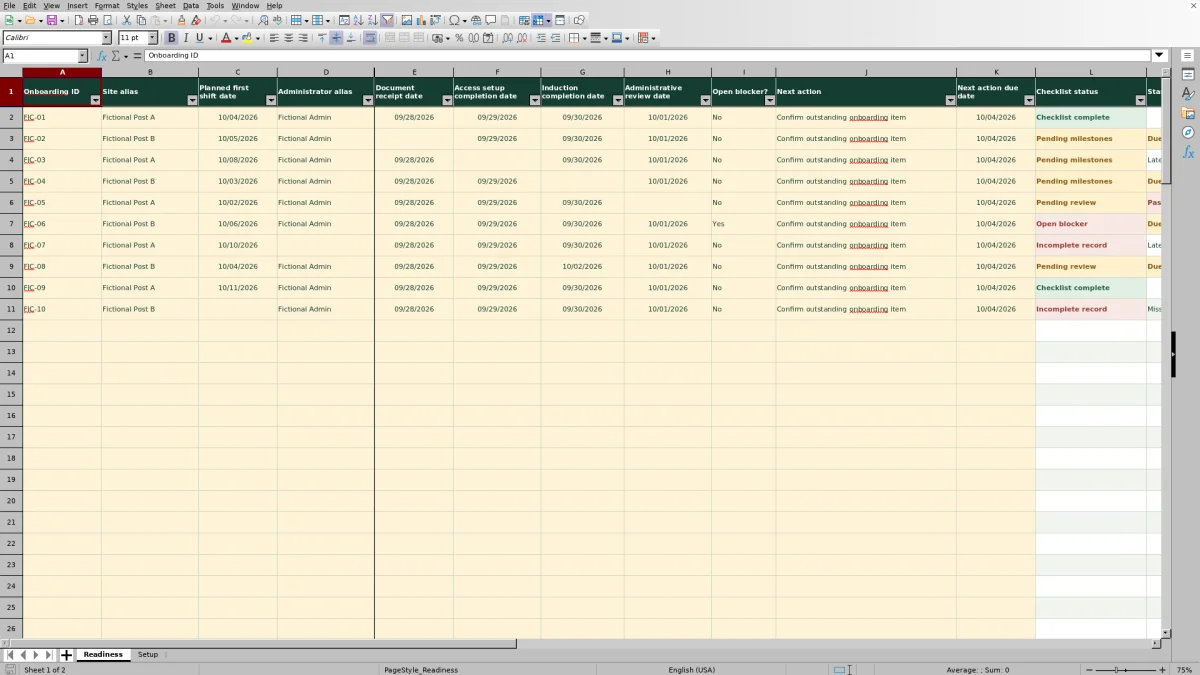
Before a new guard’s planned first shift, check which onboarding items still need attention. The Guard Sheets security guard new hire onboarding checklist is an Excel workbook for recording administrative milestones, open blockers and follow-up actions.
Use it to organize document receipt, access setup and induction records without storing sensitive screening results. Its checklist status reflects the entries and requirements you set—not authorization to assign a guard to a post.
Where this workbook helps
- Identify onboarding records that need missing information, milestone completion or administrative review.
- Focus follow-up on incomplete checklists near or past the planned first shift date.
- Keep the responsible administrator, next action and due date together for handover.
- Summarize checklist statuses without manually counting each record.
What is in the file
How to get started
1. Set your review assumptions
Open Setup. Check the As-of date, choose the Follow-up window (calendar days), and set the three milestone requirements to Yes or No. The window accepts whole numbers from 0 to 30; use your company’s planning needs rather than treating the supplied value as a standard.
2. Replace the fictional examples
The supplied FIC-01–FIC-10 records are fictional. Clear or replace their input entries before using the workbook for live administration. In Readiness, enter a unique Onboarding ID, Site alias, Planned first shift date and Administrator alias. Use the prepared rows 2–101 and leave the formulas in columns L–N intact.
3. Record completed milestones and follow-up
Enter actual milestone dates in Document receipt date, Access setup completion date and Induction completion date. Record the Administrative review date when that review has occurred. Select Yes or No in Open blocker?, then enter a nonsensitive Next action and Next action due date where follow-up is needed.
4. Review results before handover
Filter Readiness by Checklist status, Start-date alert or Action alert. Check the status counts on Setup, then agree who will handle unresolved items. Alerts are worksheet results; you must communicate the follow-up yourself.
Choose the requirements before judging completion
Use Setup to decide whether document receipt, access setup and induction are required for the checklist. These are workbook-wide assumptions, not separate requirements for each record. Changing a requirement can change how existing entries are classified, so agree on the scope before reviewing a group of new hires.
The milestone switches control whether a missing date keeps the record pending. They do not establish what documents are acceptable, what access a guard needs or what an induction must cover. Define those matters through your own onboarding process.
The As-of date initially uses TODAY(), which supplies the current date when Excel recalculates. For a dated review, you can enter a fixed date instead. That replaces the formula, so restore it later if you want a current-date reference again. Check this setting first whenever a result appears out of date.
Fictional example: a missing receipt near the first shift
Consider the supplied fictional record FIC-02 for Fictional Post B, assigned to Fictional Admin. Its Planned first shift date is 10/05/2026. Document receipt date is blank, while access setup is recorded on 09/29/2026, induction on 09/30/2026 and administrative review on 10/01/2026. Open blocker? is No.
For this demonstration, set the As-of date to 10/02/2026, keep the Follow-up window at 3 calendar days and leave Require document receipt? set to Yes. The alert boundary is 10/02/2026 plus 3 calendar days, or 10/05/2026. Because the planned start falls on that boundary, Start-date alert returns Due soon. The missing required receipt produces Pending milestones.
The example’s Next action is “Confirm outstanding onboarding item,” due 10/04/2026. Because both action fields are filled and the due date is not before the as-of date, Action alert returns Action scheduled. That result does not mean the action is finished.
The next decision is to confirm the missing receipt and replace the generic action with a specific, nonsensitive instruction. Record the receipt date only after receipt occurs, then check whether the administrative review must be updated. Do not use the planned start date as a substitute for a completed milestone.
Read status and timing as separate signals
Checklist status describes the record’s administrative condition. Start-date alert describes its timing against the As-of date. Action alert describes whether follow-up has an action and due date, and whether that date has passed. Review all three rather than treating one status as the whole picture.
The checklist formula checks missing core information before duplicate IDs, then open blockers before missing required milestones and review timing. A record showing Open blocker may also have missing milestone dates. Resolve the displayed issue and review the row again; the status is not an exhaustive list of every problem.
For unfinished checklists, a planned start before the as-of date produces Past planned start. A start from the as-of date through the end of the follow-up window produces Due soon; a later start produces Later. The window uses calendar days, not business days.
Setup labels its alert counts as overlapping. One record can be Due soon and Action overdue, so adding those counts does not give a unique number of guards needing attention. Use the filtered records to identify the actual follow-up workload.
Troubleshooting missing, duplicate and rejected entries
- Incomplete record: Check Onboarding ID, Site alias, Planned first shift date, Administrator alias and Open blocker?. A blank blocker answer is not equivalent to No.
- Duplicate ID: Search the prepared Onboarding ID range for repeated cycle aliases. Correct an accidental duplicate or use distinct aliases for genuinely separate onboarding cycles. Do not substitute identification numbers.
- Pending review after a milestone update: Check whether Administrative review date is blank or earlier than the latest recorded milestone date. Record a new review date only after the review occurs; do not merely change the date to clear the status.
- A rejected milestone or review date: Enter a valid Excel date without a time component. Dates in columns E–H must not be later than the As-of date. If you are recording planned work, use Next action and Next action due date instead.
- Assign next action: On an unfinished checklist, either Next action or Next action due date is missing. Fill both so the record has a usable follow-up instruction and deadline.
Enter dates in MM/DD/YYYY format. The planned first shift and action due date fields also validate whole-date values, but they can be future dates. Date validation helps with entry format; it does not confirm that an event actually occurred.
Keep sensitive information outside the checklist
Use Onboarding ID as a unique cycle alias and Site alias as a nonsensitive site reference. Administrator alias identifies the responsible onboarding administrator. These fields let you organize follow-up without turning the workbook into a personnel file.
Document receipt date records a receipt milestone, not document contents or an assessment of acceptability. Access setup completion date records completion, not passwords, access codes or credentials. Induction completion date records a milestone, not proof of qualifications.
Keep sensitive screening results, identification numbers and detailed personnel concerns out of Next action. A brief instruction such as “Confirm receipt milestone with administrator” is sufficient for this checklist. Any supporting records should remain in your company’s designated record process; no document repository or integration is established here.
Hand over unresolved work without implying shift coverage
Before passing the file to another administrator or supervisor, review unfinished records for a clear Next action and Next action due date. Administrator alias identifies the responsible onboarding administrator, but the workbook has no separate next-action assignee field. If someone else will handle the task, agree on that responsibility outside the file.
A due date equal to the As-of date returns Action scheduled, not Action overdue. Review actions due that day as part of the handover rather than relying only on the overdue label. The calculation does not send reminders or confirm that anyone accepted the task.
Keep a dated copy before substantial requirement or record changes if you need a reference for the handover. Built-in revision history is not established by this workbook. Also keep onboarding separate from dispatch: Planned first shift date is a planning date, not scheduled coverage, attendance or a confirmed post assignment.
Compare with a manual onboarding register
A paper register or a plain manually maintained spreadsheet can record the same administrative facts. The choice depends on whether you need repeatable status calculations and filtering or a more flexible narrative record.
| Method | Status review | Timing and follow-up | Structure and limits |
|---|---|---|---|
| Guard Sheets Excel workbook | Calculates checklist status from entered fields and shared milestone requirements. | Calculates start-date and action alerts against an as-of date; provides filters and selected counts. | Provides 100 prepared rows with date milestones and aliases. Does not verify completion or dispatch guards. |
| Manual onboarding register | The administrator evaluates and writes the status using the company’s checklist. | The administrator compares dates and maintains a follow-up list and totals manually. | Can be arranged around local record needs, but requires consistent entry and review conventions. |
Use this workbook when your process fits the shared milestone requirements and you want calculated review queues. A manual register may fit a small process with varied narrative requirements, provided someone consistently checks dates and unresolved work. Neither method independently confirms readiness for a client assignment.
Frequently asked questions
Does “Checklist complete” mean the guard can start work?
No. Checklist complete is an administrative result: the configured milestones and administrative review are recorded. It does not perform licensing checks, establish qualifications, confirm legal compliance or authorize a post assignment. Make assignment decisions through your company’s separate approval process.
Why are the alert cells blank?
An entirely empty input row produces no status or alerts. When Checklist status is Checklist complete, the start-date and action alert formulas also return blank—even if Next action still contains text. Check the row’s status before interpreting a blank as missing calculation, and reconcile any leftover action text yourself.
Can I enter more than 100 onboarding records?
The prepared formulas, filters, validation ranges and summary counts cover Readiness rows 2–101. Simply typing below that range does not establish the same behavior for additional records. Keep within the prepared capacity or have the ranges and formulas deliberately extended and checked before relying on extra rows.
How should I enter an overnight first shift?
This workbook records dates, not shift times or durations. Use the calendar date on which the planned first shift begins, and apply that convention consistently. Keep the overnight start and end times in your separate scheduling record; this checklist does not calculate overnight coverage.
Does recording access setup create or check access?
No. Access setup completion date is a manually entered milestone. The workbook does not create accounts, issue credentials, test access or notify a guard. Record completion only after the applicable setup work has been confirmed through your own process.
Editorial coverage

Naomi WestbrookScheduling & contract records

Adrian MercerPatrol & operational records